Clock in and out from a browser
On a computer, open Time clock in the left menu to clock in, take breaks and clock out. Managers who work shifts use the same clock.
You can clock in and out in a web browser as well as in the Shift Amp app. Both record the same hours. Managers who also work shifts have the same clock, under Your clock, if they're on the organization's roster themselves.
Open your clock
- If you're an employee, in the left menu, select Time clock.
- If you're a manager, in the left menu, select Time, then Time clock. Your own clock is under Your clock, above the list of who's working. To see your entries for the week, select Your week and history.
Clock in
- Under Clock in, check the shift shown: its position, location and scheduled time.
- Select Clock in.
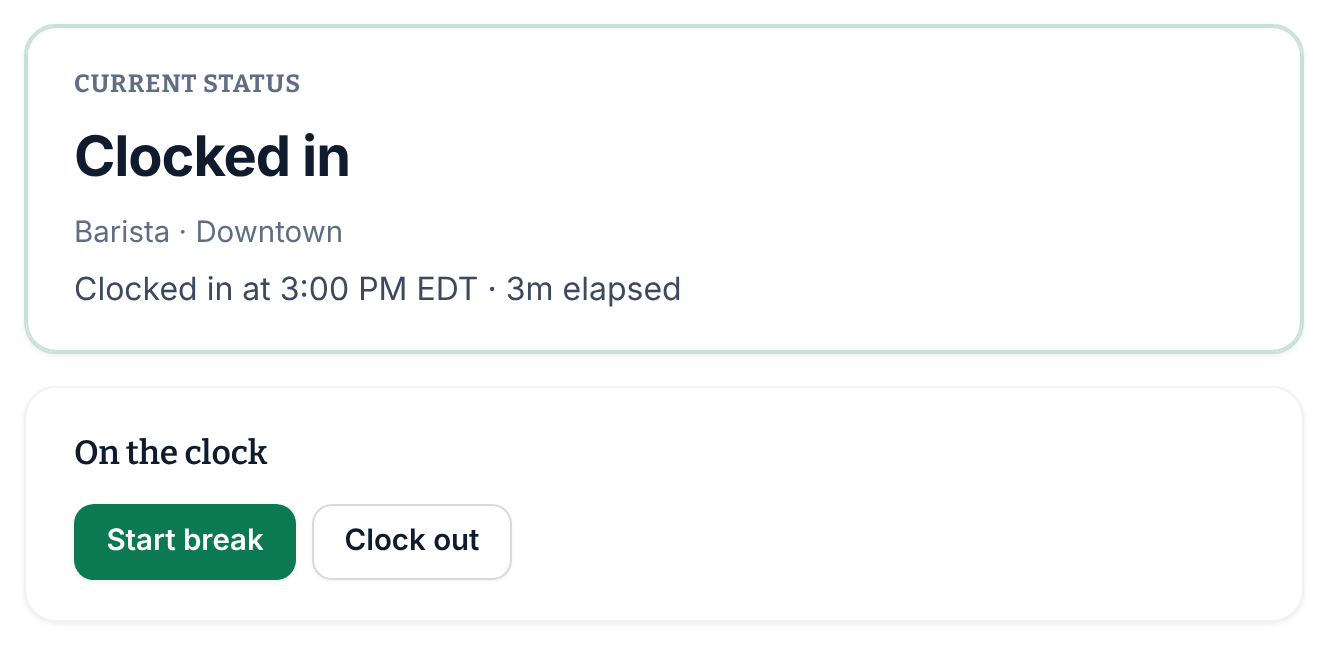
- Wait for a message such as "Clock-in confirmed at 3:00 PM EDT." It shows the time that was recorded.
The status at the top now reads "Clocked in", and the clock offers your next actions.
To clock in at a different location or position, first select Choose another location or position, then choose a Location and a Position. To go back, select Use my scheduled shift instead. If nothing on the schedule matches when you select Clock in, No matching scheduled shift asks you to confirm: select Clock in without a schedule, and your manager reviews the entry.
Take a break and clock out
- To take a break, select Start break. When you're back, select End break.
- To finish, select Clock out, then Confirm clock out. A message such as "Clock-out confirmed at 8:16 PM EDT." shows the time.
If a break is still running, the button reads End break and clock out. The break and your shift end together, and your manager reviews the entry.
How the browser clock differs from the app
- Leaving the page or closing the browser doesn't clock you out.
- If the connection drops, you see "We couldn't reach the server. Your punch was NOT recorded — try again." Select the same button again. A retry can't record the punch twice. A browser can't save a punch to send later; the phone app can.
- A browser doesn't share your location. If your workplace checks where punches come from, your manager may need to review a browser punch, but it's always recorded.
If you can't clock in
The clock says why instead of showing Clock in:
- "Time tracking isn’t switched on for you": your workplace doesn't record your hours in Shift Amp. You're still on the schedule.
- "Time is recorded elsewhere": your workplace doesn't use the time clock.
- "No scheduled shift was found for right now, and your organization only allows clocking in for a scheduled shift. Check with your manager."
- "It’s too early to clock in for this shift. You can clock in from 3:00 PM EDT." Your workplace limits early clock-ins, so wait until the time shown.
Clocking out and ending a break always work, whatever your workplace has switched off. To see this week's hours, see See your hours.
Was this article helpful?