Report a problem with a time entry
Report a wrong entry from the entry itself, in the app or on the web. Your manager makes any correction, and you're notified of the decision.
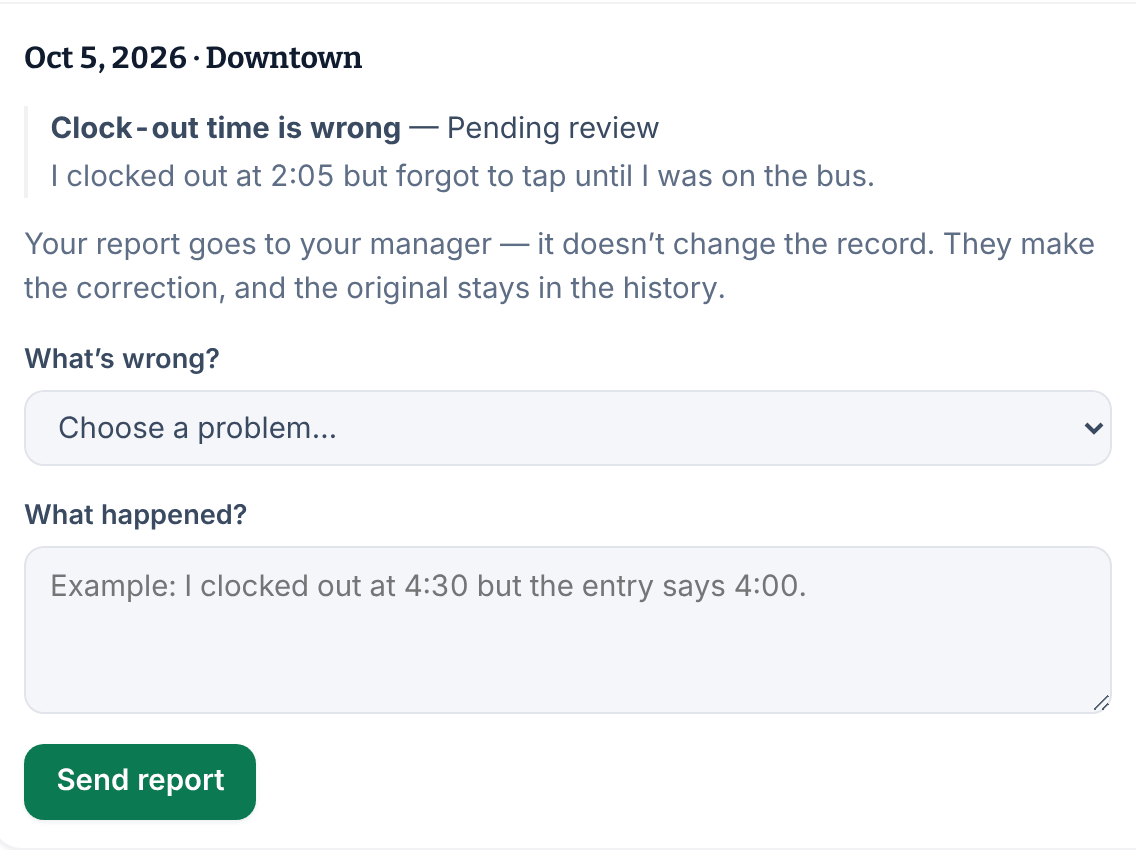
If one of your time entries is wrong, report it from the entry. A report doesn't change anything by itself: your manager makes any correction, the original punch stays in the history, and you're notified of the decision. You can report problems only if your workplace takes reports in Shift Amp.
In the app
- Select the Today tab (the house icon), then Time clock, then View time history.
- Select the entry. For an earlier week, select Previous first.
- Select Report problem.
- Choose what's wrong, such as I forgot to clock out or Clock-out time is wrong.
- If a time box appears, you can type the right time. It's optional.
- In the box below, explain what happened.
- Select Send report, then Done.
On the web
- In the left menu, select Time clock.
- Below the clock, find the entry in this week's list and select Report on its row.
- In What’s wrong?, choose the problem.
- If a time field appears, you can choose or type the right time. It's optional.
- In What happened?, explain.
- Select Send report, then Done.
The message "Report sent. Your manager reviews it — you'll see the decision here." confirms your report. The web lists this week's entries only. For an earlier week, use the app.
See what your manager decided
When a manager decides, you get a notification:
- Time correction approved: your manager corrected the entry.
- Time correction reviewed: your manager kept the entry as it was recorded.
- Time correction resolved: your manager dealt with it another way.
Each report also shows its status on the entry: "Pending review", "Approved — entry corrected", "Reviewed — entry unchanged" or "Resolved", with any note from your manager. On the web, the row reads "You reported this" while you wait and "Report reviewed" once it's decided.
If you report the same problem on an entry again before it's decided, you see "You've already reported this — it's awaiting review."
If you can't report a problem
If you don't see Report problem in the app or Report on the web, your workplace handles corrections outside Shift Amp. Tell your manager what needs fixing.
For a shift you worked without clocking in at all, see Tell your manager you forgot to clock in.
Was this article helpful?