Plan breaks in shifts
Add a planned break to a shift or a time block so your team knows one is expected. It's for planning only and never changes recorded time.
A planned break says how much break time a shift includes, such as 30 minutes, and the person on the shift sees it. It's for planning only: it doesn't clock anyone out, take time off their hours, or change scheduled hours or estimated cost. The breaks people actually take are recorded with the time clock. Any manager who builds the schedule can add one to a shift.
Add a planned break to a shift
- In the left menu, select Schedule, then go to the week.
- Select a draft shift to open it, or add a shift. See Add a shift.
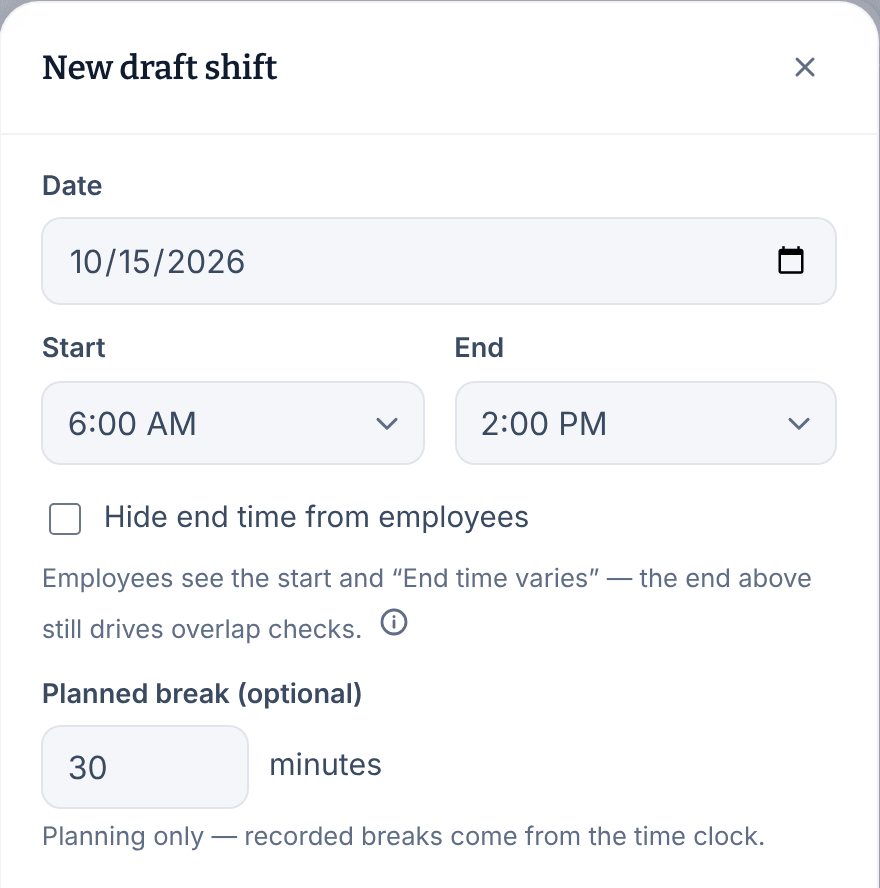
- In Planned break (optional), enter the length in minutes.
- Select Save draft shift (or Save changes for a shift you're editing).
The break has to be shorter than the shift. It comes along when you duplicate the shift or copy the week. To change the break on a published shift, create a revision: see Change a published week.
Save a planned break in a time block
A time block is a saved timing, such as your opening shift, that fills in a shift's start, end and planned break for you. Owners and operations administrators can save blocks for every location. Location managers can save them for their own locations.
- Open the account menu at the bottom of the left menu (your name), select Settings, then select Scheduling.
- Select Manage time blocks.
- Under Add a time block, enter a Name, check Applies at, and set Start and End.
- In Planned break (optional), enter the minutes.
- Select Save time block.
When you add a shift, choose the block under Time block to fill in its times and break. Editing a block later doesn't change shifts already saved from it. Shift templates can carry a planned break too: see Reuse common shifts with templates.
Where the break shows
- The employee on the shift sees "Planned break: 30m" with it, in the Shift Amp app and on the web.
- Managers see it in the shift's panel on the schedule, on the printed schedule ("30-min break") and in the schedule's CSV file. It doesn't show on the shift cards in the grid.
To see how people record their breaks, see Start and end a break. To choose whether recorded breaks count toward worked time, see Choose how breaks count.
Was this article helpful?