Add a shift
Add shifts to a week as drafts that only managers see. Set the time, position and break, then assign someone or leave the shift unassigned or open.
Every shift starts as a draft. Only managers can see a draft week, and nobody is notified until you publish it. Organization owners, operations administrators, location managers and assistant managers can add shifts at the locations they schedule.
Add a shift
- In the left menu, select Schedule, then go to the week you're building.
- Select Add shift (the + button at the top right). Or, in a person's row, hover over the day and select the + that appears. The shift then starts with that day and that person filled in.
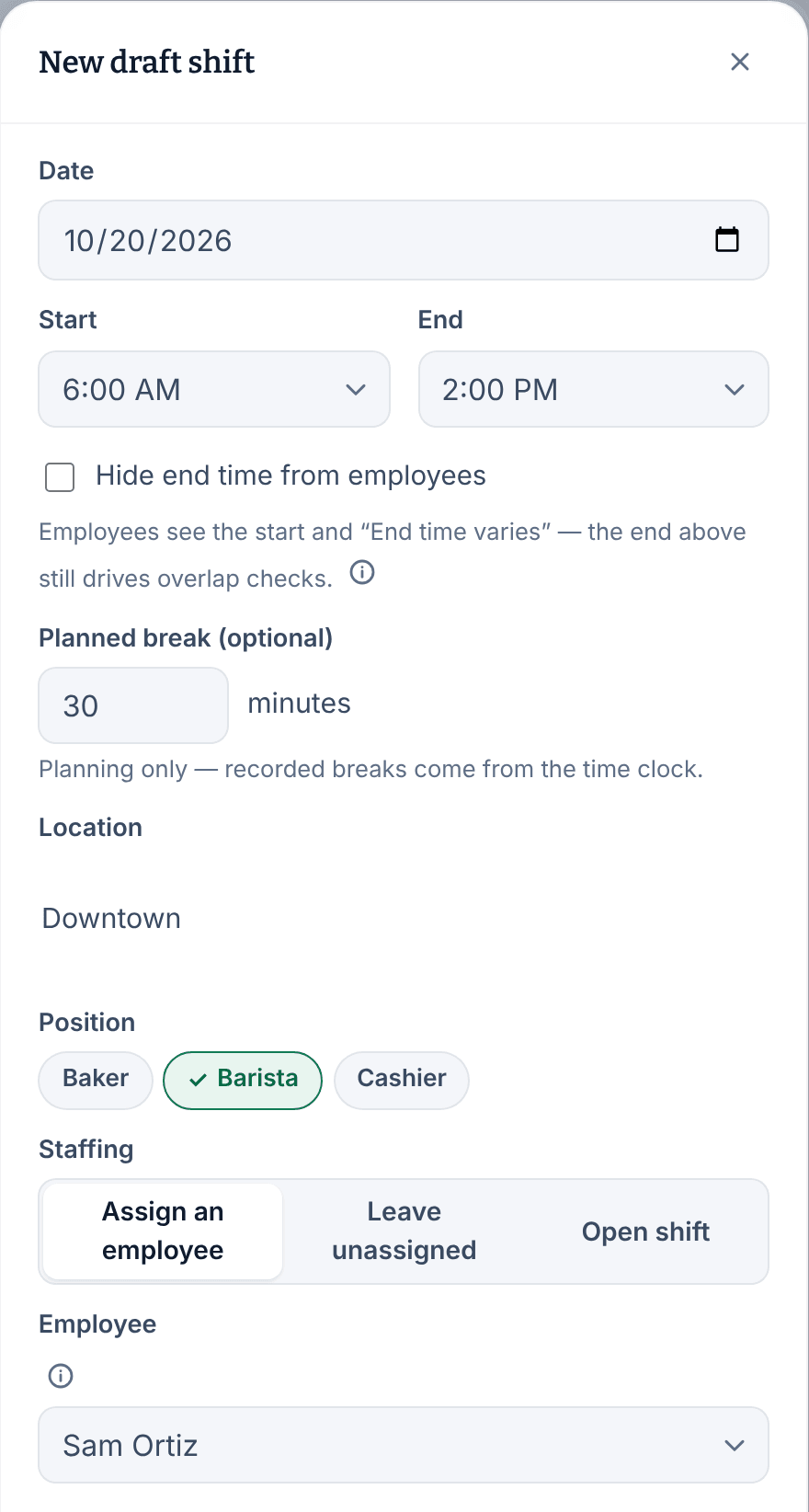
- In the New draft shift panel, check the Date, then choose the Start and End times.
- If you schedule more than one location, choose the Location. Then choose the Position. It starts on the first position in the list, even from a person's row.
- If the shift includes a break, enter its length in minutes in Planned break (optional).
- Under Staffing, choose Assign an employee, Leave unassigned or Open shift.
- If you chose Assign an employee, pick the person under Employee.
- If you like, add Instructions for the employee (optional) or a Manager-only note (optional). Employees never see the manager-only note.
- Select Save draft shift.
The shift appears on the schedule as a draft card with a dashed border. If the week is already published, there's no Add shift button: select Create revision… first. See Change a published week.
Choose who works the shift
- Assign an employee puts one person on the shift. People who pass every check are listed under Eligible. Anyone who can't work it is listed under Not eligible with the reason, and can't be picked. Owners, operations administrators and location managers also see Needs override for people who are only outside their availability or don't hold the position. If you pick one of them, the save button reads Override and save. See Understand conflict flags.
- Leave unassigned saves the shift with nobody on it. When you first publish the week, it becomes an open shift that eligible employees can claim.
- Open shift invites claims on purpose. Once the week is published, eligible employees can claim it, and you approve who takes it.
The Employee list shows only people who have a row on the schedule right now. If someone is missing, clear any employee or position filter.
Times and breaks
- A shift can be from 30 minutes to 16 hours long.
- If the end is at or before the start, the shift runs overnight and ends the next day.
- The planned break is for planning only. It never clocks anyone out or deducts time; recorded breaks come from the time clock.
- Tick Hide end time from employees when the finish depends on the work. Employees see the start and "End time varies". The end you set still counts for overlap checks.
Add several shifts at once
- In New draft shift, set the date, times, position and staffing.
- Tick Create several shifts at once.
- Tick the people under Who is on these shifts. To add shifts with nobody on them yet, enter a number in Extra shifts still to fill. With Leave unassigned or Open shift, the field is How many shifts.
- Select the create button. It says how many shifts it makes, such as Create 3 draft shifts.
Only eligible people can be picked here. To assign someone who needs an override, add their shift on its own.
Was this article helpful?
More in Building the week
- Move, copy, or delete shifts
- Understand conflict flags
- Copy last week
- Save and reuse a week template
- Reuse common shifts with templates
- Set up a repeating shift
- Fill shifts with Auto-assign
- Edit several shifts at once
- Add a day note or close a day
- Change how the schedule looks
- Add a checklist to a shift
- Set a weekly hours limit
- Change the first day of the week
- All of Scheduling