Reuse common shifts with templates
Save the shifts you build every week as shift templates, and their timings as time blocks. Either one fills in a new draft shift for you.
If you build the same shifts every week, save them once. A shift template is a whole shift: times, break, position, who works it, and notes. A time block is only the timing: start, end, hidden end and break. Both fill in a new draft shift that you can still change, and nothing is published until you publish the week.
Owners and operations administrators manage templates and time blocks for every location. Location managers manage those for their own locations. Assistant managers can use them but not create them.
Save a shift as a template
- In the left menu, select Schedule, then select a shift you've already saved.
- At the bottom of the panel, select Save as a template.
- Enter a Template name. Owners and operations administrators also choose where it Applies at.
- Under Include, choose whether to keep The employee, and the shift's instructions and manager-only note if it has them.
- Select Save template.
A saved employee is a preference, not a booking. They're checked again every time the template is used.
Use a template on the schedule
Once your locations have templates, a Shift templates bar appears above the grid.
- Select Shift templates to open it.
- If you schedule more than one location, choose one under Add to.
- On the template, select a day, such as Sat. Or drag the template onto any cell in that day's column.
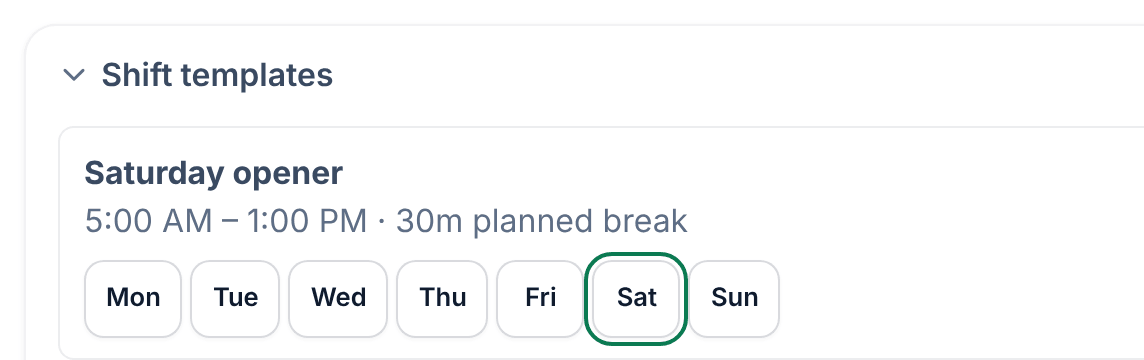
Each one adds a draft shift at the template's times. If the saved employee can't work that day, the shift is added with nobody on it, and a message says why.
You can also start from a template when you add a shift: in New draft shift, choose one under Start from a template. It fills in the form, and you can change anything before you save.
Add or change templates in Settings
- Open the account menu at the bottom of the left menu (your name), select Settings, then select Scheduling.
- Select Manage shift templates.
- Under Add a template, enter a Name, choose where it Applies at, and fill in the shift.
- Select Save template.
Each template has Edit and Archive, and you can tick Checklists to put a checklist on every shift it creates. Changing a template never changes shifts already made from it.
Save a time block
- In Settings → Scheduling, select Manage time blocks.
- Under Add a time block, enter a Name and choose where it Applies at.
- Set the Start and End, and any Planned break (optional).
- Select Save time block.
When you add a shift, choose the block under Time block in New draft shift. It fills in the times and break, and nothing else. Editing or archiving a block never changes shifts you've already saved.
Was this article helpful?
More in Building the week
- Add a shift
- Move, copy, or delete shifts
- Understand conflict flags
- Copy last week
- Save and reuse a week template
- Set up a repeating shift
- Fill shifts with Auto-assign
- Edit several shifts at once
- Add a day note or close a day
- Change how the schedule looks
- Add a checklist to a shift
- Set a weekly hours limit
- Change the first day of the week
- All of Scheduling