Add a checklist to a shift
Write reusable checklists in Settings, attach them to shifts or shift templates, and see who ticked off each task in the app.
A checklist is a reusable list of steps, such as your opening or closing duties. Attach one to a shift, and the person working it ticks the steps off in the Shift Amp app. Owners and operations administrators write the checklists. Any manager can attach them to shifts at the locations they schedule.
Create a checklist
Only owners and operations administrators can do this.
- Open the account menu at the bottom of the left menu (your name), select Settings, then select Shift tasks.
- Under Add a checklist, enter a Name, such as Opening checklist, and a Description (optional).
- Type the first task in Step 1, and a detail under it if it helps. Select Add a step for each one after that, up to 50.
- Select Save checklist.
The checklist appears under Checklists. If you edit it later, shifts that already have it keep the steps they were given.
Attach a checklist to a shift
- In the left menu, select Schedule, then select the shift. A new shift has to be saved before you can add tasks to it.
- In the Tasks section, choose a checklist under Attach a checklist.
- Select Add.
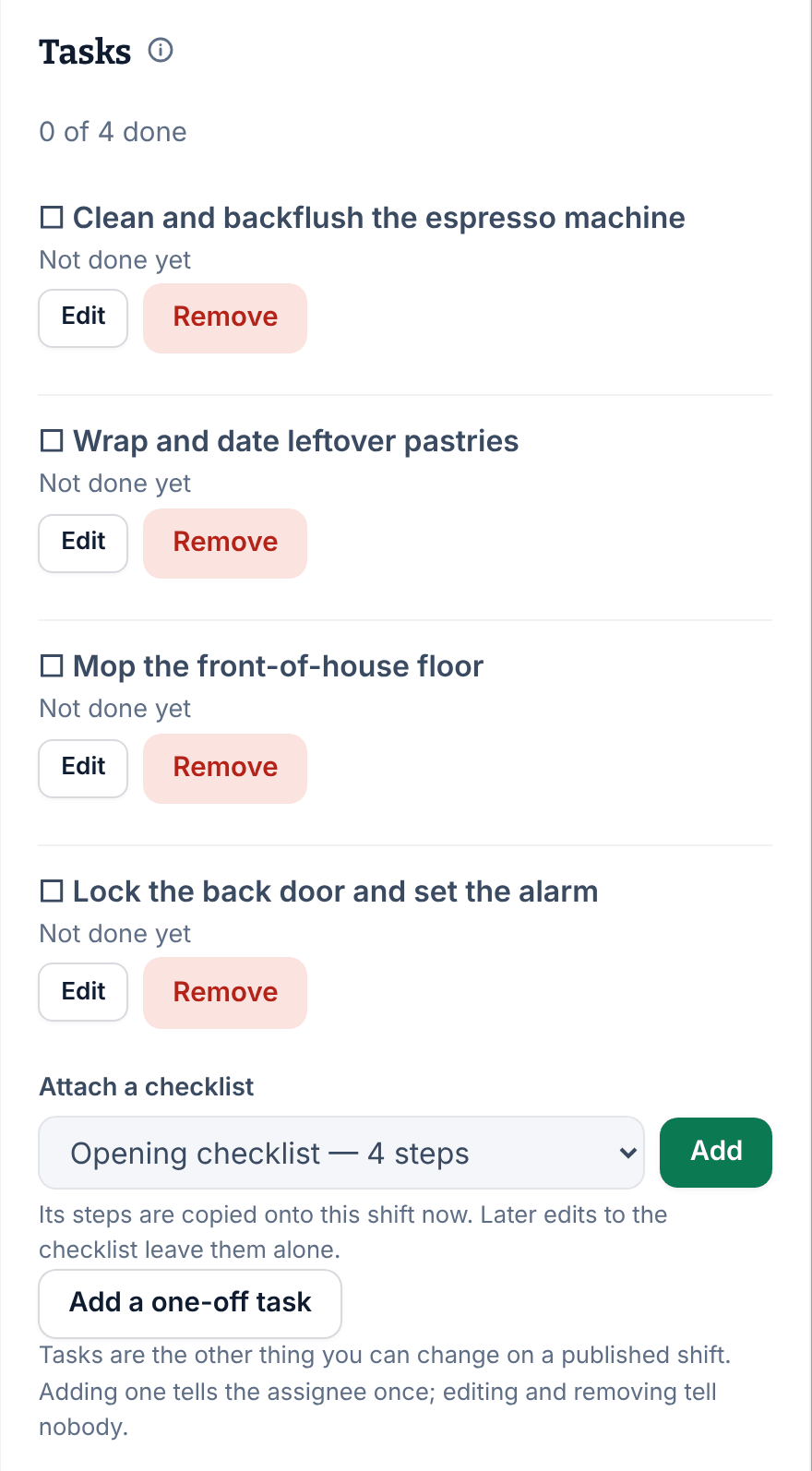
The steps are copied onto the shift, and its card shows progress, such as "☑ 0/4".
Add a one-off task
- In the shift's Tasks section, select Add a one-off task.
- Enter the Task, and a Detail (optional) if it helps.
- Select Add task.
Every task on a shift has Edit and Remove. Removing a task that was already ticked removes that record too.
Put a checklist on every shift from a template
Owners and operations administrators can do this for any template, and location managers for their own locations' templates.
- In Settings, select Scheduling, then Manage shift templates.
- On the template, under Checklists, tick the checklist.
Every shift the template creates from then on carries it, including every shift in a repeat. Shifts it already created keep their steps. See Reuse common shifts with templates.
See what's done
On the shift, each task says "Not done yet" or who ticked it and when. Only the person working the shift can tick tasks, in the Shift Amp app, and only on a published shift. To check tasks across many shifts, see Review shift tasks and feedback.
Checklists are on unless an owner or operations administrator turns off Checklists in Settings → Shift tasks. Turning them off hides them everywhere but deletes nothing.
Was this article helpful?
More in Building the week
- Add a shift
- Move, copy, or delete shifts
- Understand conflict flags
- Copy last week
- Save and reuse a week template
- Reuse common shifts with templates
- Set up a repeating shift
- Fill shifts with Auto-assign
- Edit several shifts at once
- Add a day note or close a day
- Change how the schedule looks
- Set a weekly hours limit
- Change the first day of the week
- All of Scheduling