Change the first day of the week
Choose the day your schedule weeks begin on. The change starts after the weeks you've already scheduled, and the week in between is shorter.
Weeks begin on Monday unless you change it. The first day of the week decides how days are grouped into weeks: on the schedule, in weekly hours, on timecards and in weekly reports. It never moves a shift. Only owners and operations administrators can change it; other managers see the current setting.
Change the first day
- Open the account menu at the bottom of the left menu (your name), select Settings, then select Scheduling.
- Under First day of the week, choose the new day under Weeks begin on.
- Read the preview. It says the date your new weeks begin, and whether one week will be short.
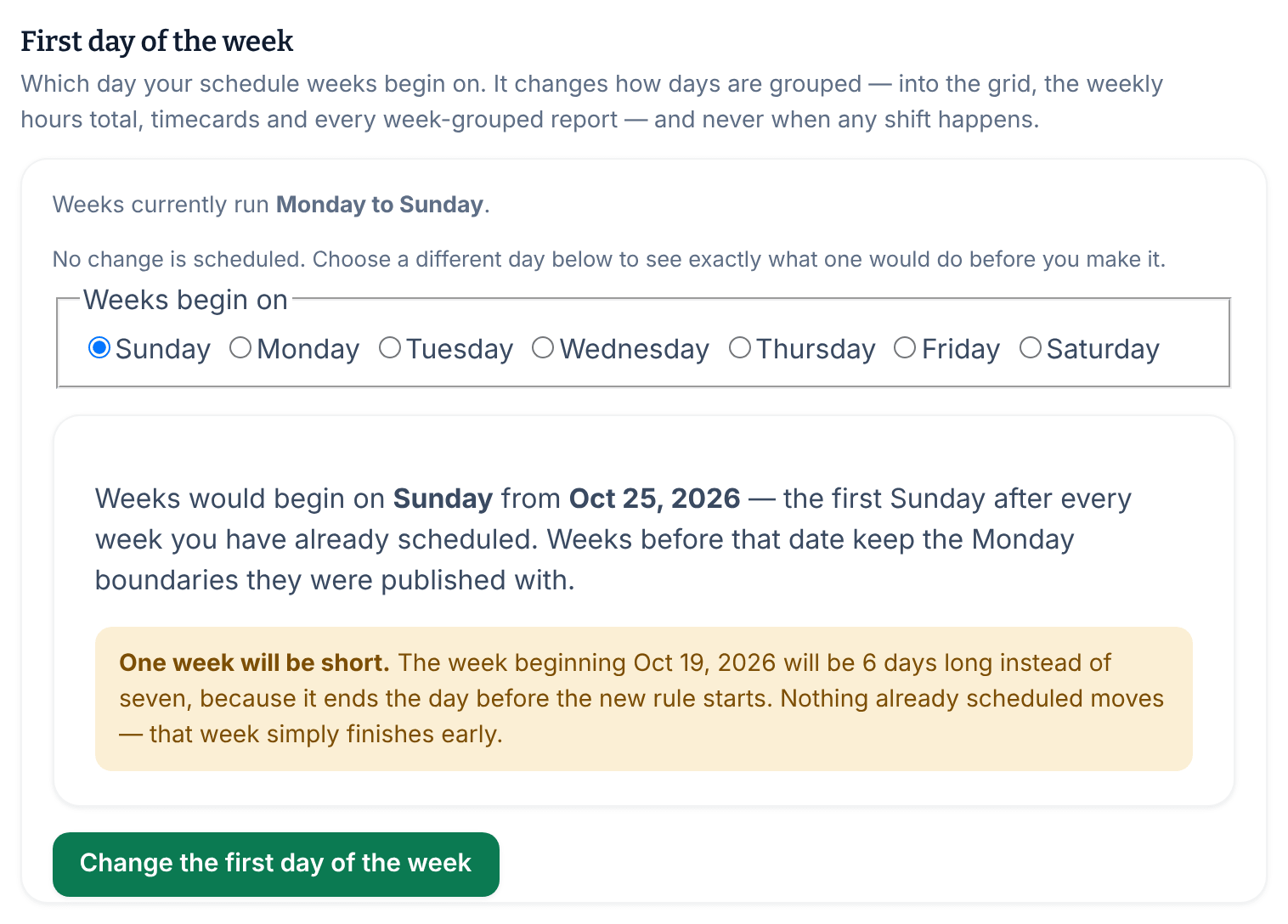
- Select Change the first day of the week.
- Check the confirmation, then select Change it.
The setting confirms the change and shows the date your new weeks begin.
What happens to the weeks around the change
- Weeks you've already scheduled, published or not, keep their days. The new weeks begin on the first chosen day after the last of them.
- One week is short. The week before the new start ends early, so it has between one and six days. For example, if Fern & Fog Bakery switches from Monday to Sunday, the week beginning Monday, Oct 19 is six days long, and Sunday weeks begin on Oct 25. The schedule labels that week with its real dates.
- Nothing already scheduled moves. Shifts keep their dates and times; only the way days are grouped changes.
Withdraw a change
Until your new weeks begin, the setting shows the day and the date they start from. To keep your current week instead, select Withdraw this change. It doesn't ask first.
Once the new weeks have begun, the change can't be withdrawn. To move to a different day after that, change the setting again the same way.
Was this article helpful?
More in Building the week
- Add a shift
- Move, copy, or delete shifts
- Understand conflict flags
- Copy last week
- Save and reuse a week template
- Reuse common shifts with templates
- Set up a repeating shift
- Fill shifts with Auto-assign
- Edit several shifts at once
- Add a day note or close a day
- Change how the schedule looks
- Add a checklist to a shift
- Set a weekly hours limit
- All of Scheduling