Arrange cover for someone
When an employee tells you they can't work a shift, start the request for them: ask the whole team, or offer the shift to one coworker.
If an employee calls or messages you instead of using the app, you can start the coverage request they would have started. Any manager can do this for published shifts at the locations they schedule, but not for their own shifts. The employee is told, and the shift stays theirs until a manager approves someone.
Open Arrange cover
- In the left menu, select Requests. The Coverage queue opens.
- In the Shift offers panel, select Arrange cover for somebody.
Upcoming published shifts lists assigned shifts in the next 21 days at the locations you schedule. A shift that's already in a coverage request, swap or offer isn't listed. Resolve that one first. Your own shifts are listed too, but you can't arrange cover for them: ask another manager.
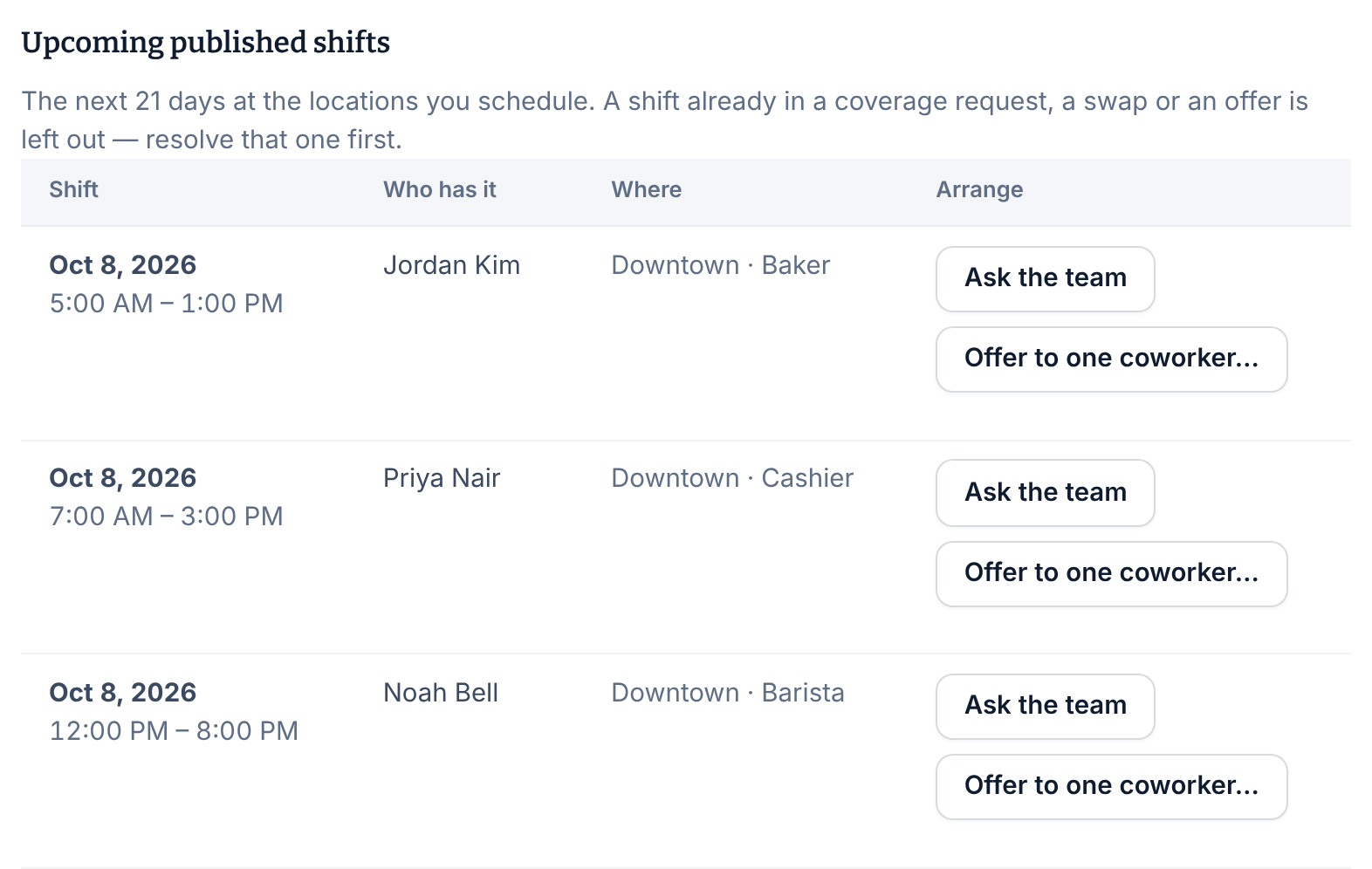
Ask the whole team
- Find the shift and select Ask the team.
- Select Ask the team again to confirm.
The shift leaves the list. This opens an ordinary coverage request, exactly as if the employee had asked. Coworkers who can work the shift are invited to claim it, and the request appears in Coverage as a Released shift. There's no note field. Approve a claim as usual: see Approve who covers a shift.
Offer it to one coworker
- Find the shift and select Offer to one coworker….
- Under Who could take it, choose a coworker. Everyone listed can work the shift right now, and people based at that location come first. This week shows the hours they're already scheduled.
- If you like, type a message in the box beside their name. The coworker sees it.
- Select the button with their first name, such as Offer to Jordan, then select Confirm.
Once it's sent, the page reads "This shift has already been offered to somebody." That's your offer, now listed under Shift offers in Coverage and marked "opened by a manager on their behalf". The coworker answers in the Shift Amp app. If they accept, the offer waits for a manager to approve it. If they don't answer in time, it expires and the shift stays with the employee. See Approve swaps and shift offers.
If the page says "No coworker can take this shift right now.", ask the whole team instead.
What the employee sees
The employee gets a notification, A manager arranged cover for your shift. In the app, the request shows on that shift's card, and an offer also shows in My offers. If their plans change, they can still cancel the request or withdraw the offer there.
Each option works only while it's switched on for your team. Ask the team needs Ask for coverage, and offers need Offer a shift to one coworker, both in Settings under Coverage & swaps. With Ask for coverage off, Ask the team shows an error and nothing is sent. See Let your team swap and pick up shifts.
Was this article helpful?