Post an open shift
Set a shift's Staffing to Open shift and publish the week. Eligible employees are invited to claim it, and a manager approves who gets it.
An open shift has nobody on it. When it's published, employees who can work it are invited to claim it in the Shift Amp app, and a manager approves one of them. Any manager can add open shifts to a draft week. Organization owners, operations administrators and location managers can publish them; assistant managers can't publish.
Add an open shift
- In the left menu, select Schedule, then go to the week.
- Select Add shift (+) at the top right. The New draft shift panel opens.
- Set the Date, Start, End and Position. If the schedule is showing more than one location, choose the Location too.
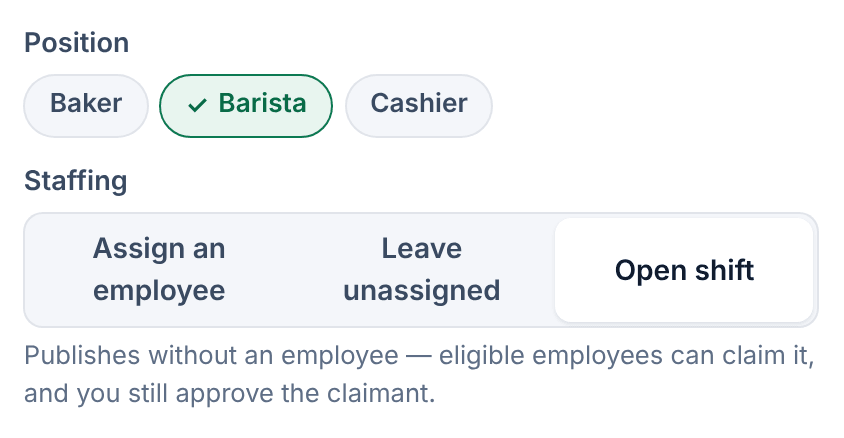
- Under Staffing, select Open shift.
- If you like, add Instructions for the employee (optional). Whoever takes the shift sees them on their schedule.
- Select Save draft shift.
The shift appears in the Unassigned & open row at the top of the week, marked ◇ Open shift. Nobody is notified yet: the week is still a draft.
To open a shift that's already in the draft, select ⋯ on its card, then Mark open…, then Mark open. If someone was on the shift, they're taken off it.
Need several people for the same hours? In New draft shift, tick Create several shifts at once and enter How many shifts. The save button then counts them, for example Create 3 draft shifts. Each one is a separate open shift with its own claims.
Open shift or unassigned?
Leave unassigned is for a shift you haven't staffed yet. The first time a week is published, any unassigned shift becomes an open shift too, and the publish panel tells you so first. In a revision of a published week, an unassigned shift stops the revision from publishing, so choose Open shift when you mean it.
Publish it
- Select Publish… at the top right.
- Select Publish schedule. If more than one location has a draft, the button reads Publish all locations.
- Because the week has open shifts, you're asked to confirm. Select Confirm.
If the week is already published, create a revision, add the open shift there, and publish the revision. See Change a published week.
What happens next
- Employees who can work the shift see it in the app: they work at the location, hold the position, and have no overlapping shift or approved time off. Those whose approved availability also covers it get one Open shifts available notification.
- When someone claims it, you get a Coverage claim to review notification. On the schedule, the shift's card shows how many claims are waiting, such as ◍ Claims · 2.
- You approve one claimant from Requests. See Approve who covers a shift.
Was this article helpful?