Choose what your team sees of the schedule
In Settings, choose whether employees see coworkers' shifts in the app, and whether coworkers' names show in full.
Owners and operations administrators decide how much of the published schedule employees see in the Shift Amp app, and how coworkers' names appear there. Location managers and assistant managers can see these settings but can't change them. Nothing here changes what managers see.
Whatever you choose, employees only ever see published shifts: never a draft or an unpublished revision, and never what a coworker is paid or their contact details.
Choose whose shifts employees see
- Open the account menu at the bottom of the left menu (your name), select Settings, then select Scheduling.
- Under Team schedule, for Employees can see, choose one:
- Their own shifts: only the shifts assigned to them. Open shifts they can claim still reach them.
- Their own position: also coworkers who share one of their positions, at the locations they work at.
- The whole team: everyone working at the locations they work at. This is the default.
- Select Save policy. If Shift Amp asks you to confirm, select Save policy again.
In the app, employees find coworkers' shifts under Team schedule on the Schedule tab (the calendar icon). With Their own shifts, there's no team schedule to open.
Choose how coworkers' names appear
- Open the account menu at the bottom of the left menu, select Settings, then select Scheduling.
- Under Coworker names, for Employees see coworkers as, choose:
- Ada L.: first name and last initial. This is the default.
- Ada Lovelace: first and last name, the way managers see them.
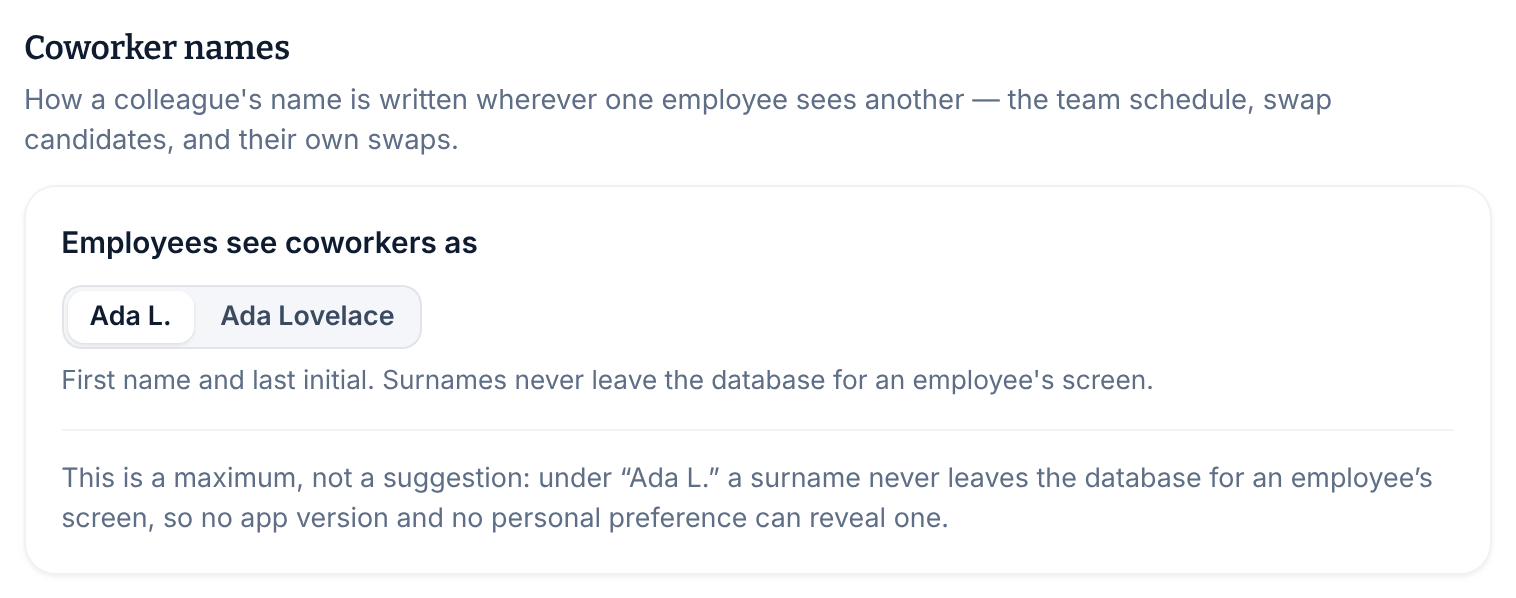
- Select Save policy. Switching to full names asks you to confirm, so select Save policy again.
This applies wherever employees see each other in the app, such as the team schedule and swaps. With the default, Casey Wren appears to coworkers as "Casey W."
Was this article helpful?