Publish a week
For managersUpdated 2 min read
When the week looks right, select Publish… to send it to your team. Unassigned shifts become open shifts that eligible employees can claim.
Publishing sends a location's week to your team. Until then, the week is a draft: only managers can see it, and nobody is notified. Organization owners, operations administrators and location managers can publish. Assistant managers can build a draft but can't publish it.
Before you publish
- Fix every shift marked ⚠. A conflict stops the whole week from publishing. See Understand conflict flags.
- Decide about unassigned shifts. When you publish, each unassigned shift becomes an open shift that eligible employees can claim. If that's not what you want, assign someone or delete the shift first.
- Choose the locations. To publish only some locations, use Filters to show only those. Other filters don't change what publishes: each location's whole week goes out together.
Publish the week
- In the left menu, select Schedule, then go to the week you want to publish.
- Select Publish… at the top right.
- Check the summary. It shows the locations that will publish, the number of shifts, how many are open or unassigned, and the hours scheduled.
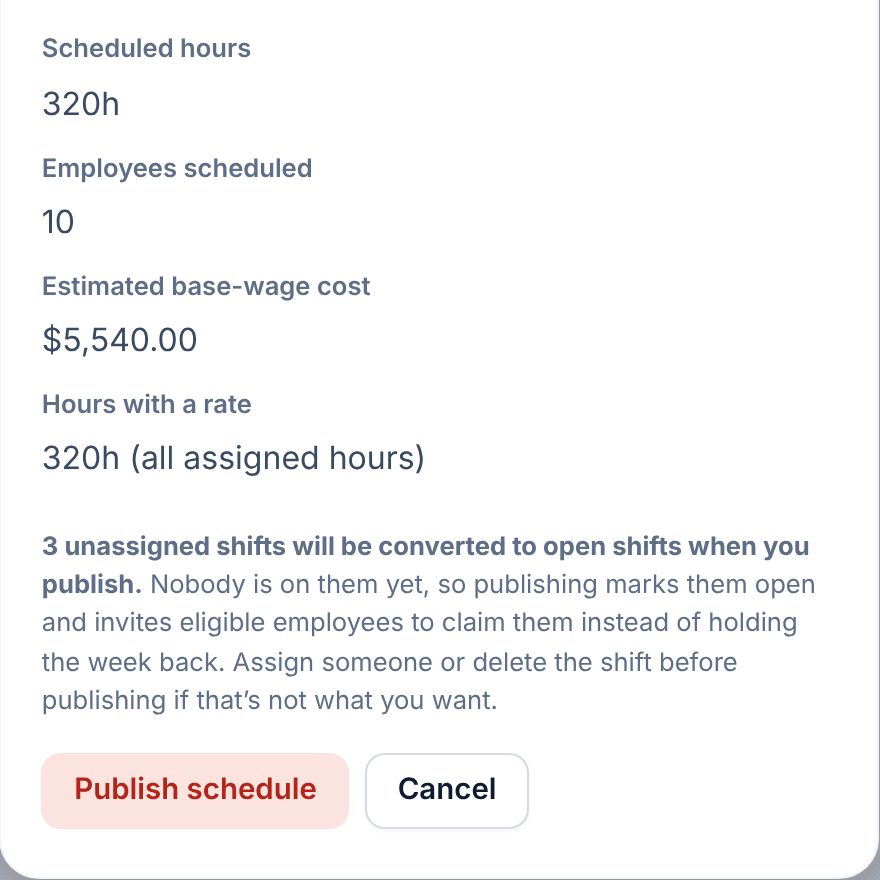
- If the panel says This schedule can’t be published yet., select each shift it lists. Fix the shift in the panel that opens, then select Publish… again.
- Select Publish schedule. If more than one location has a draft, the button reads Publish all locations.
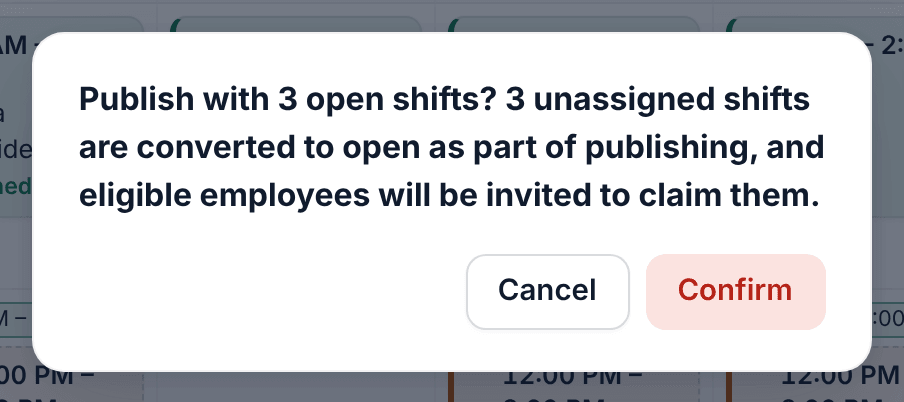
- If the week has open shifts, a confirmation appears. Select Confirm.
The week's badge now reads Published, and every shift card says Published. Employees can see their shifts right away.
If your organization's weekly hours limit is set to block, someone scheduled over the limit also stops the week from publishing. See Set a weekly hours limit.
What happens next
- Each employee with shifts that week gets one notification that sums up their shifts. Eligible employees are invited to claim any open shifts. See What your team sees when you publish.
- When someone claims an open shift, you approve them from Requests. See Approve who covers a shift.
- To change the week later, see Change a published week.
Was this article helpful?