Create a channel
Open a channel for the whole organization, chosen locations or chosen groups. Everyone it's for can read and post, and you can edit or archive it later.
A channel is a conversation for a whole audience: everyone in the organization, the people at chosen locations, or the people in chosen groups. Everyone in the audience can read and post. Owners and operations administrators can create any channel, and location managers can create channels for the locations they manage. Assistant managers and employees can't create channels, but they're in every channel that includes them.
Create a channel
- In the left menu, select Messages.
- Select + above the list of conversations, then New channel.
- Enter a Name, such as downtown-cafe. The channel shows with # in front of it.
- If you like, add a Description (optional).
- Under Who is this channel for?, choose Everyone in the organization, People at specific locations or People in specific groups. For locations or groups, tick the ones the channel is for.
- Select Create channel.
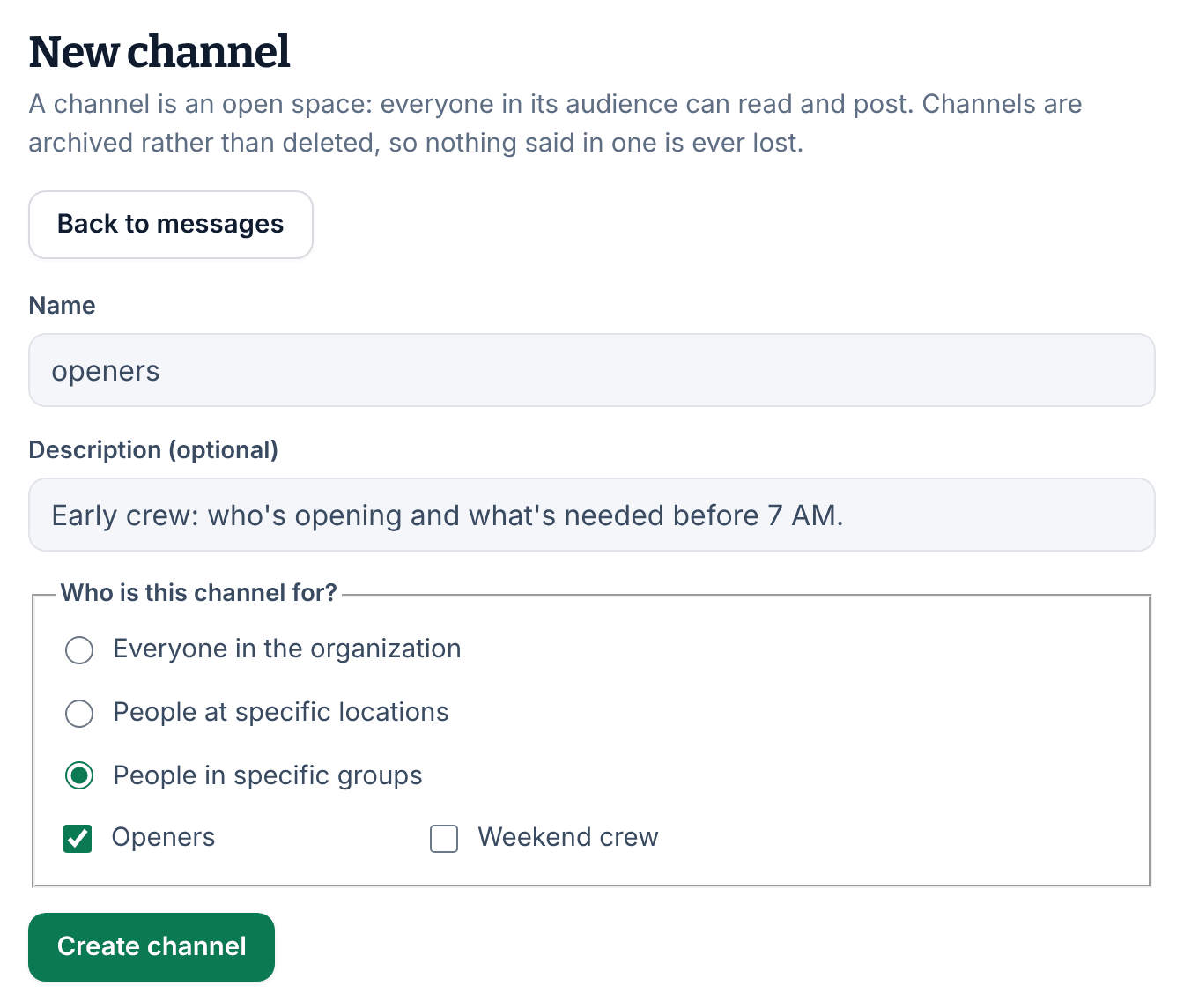
The channel opens, and it's in the list of everyone it's for. Nobody is notified that the channel was created.
Location managers see only People at specific locations, with the locations they manage. Only owners and operations administrators can choose the whole organization or groups.
Who's in a channel
- The audience decides. When someone starts at a location or joins a group, they're in its channels. When they leave it, they're out. You don't add or remove people by hand.
- Nobody can leave a channel. People who'd rather not follow one can mute it or archive it for themselves. See Mute or archive a conversation.
- There are no private channels. For a private conversation with a few people, start a group. See Message your team.
- #general reaches everyone. Every organization starts with it.
To set up groups such as "Openers" or "Weekend crew", see Organize people into groups.
Change a channel
- Open the channel and select the gear icon at the top right (Settings and notifications).
- Under Manage, select Edit channel.
- Change the Name, the Description (optional) or Who is this channel for?, then select Save channel.
Owners and operations administrators can change any channel. A location manager can change a channel for locations only if they manage every location it's for.
Archive a channel
- Open the channel, select the gear icon, then select Edit channel.
- Select Archive channel.
- Select Yes, archive it.
The channel leaves everyone's list, and nobody can post in it. Its history stays: channels are archived, never deleted.
To restore a channel, an owner or operations administrator opens it from their list, where it's marked "Archived". Then they select the gear icon, Edit channel and Restore channel.
Was this article helpful?