Message your team
In Messages, start a direct message or a group with anyone who has joined, attach photos or a PDF, search what was said, and export a conversation.
On the web, managers message their team from Messages in the left menu. Owners, operations administrators, location managers and assistant managers can all message anyone in the organization who has joined Shift Amp, one person at a time or as a group. Employees message from the Shift Amp app.
Start a direct message or a group
- In the left menu, select Messages.
- Select + above the list of conversations, then New message.
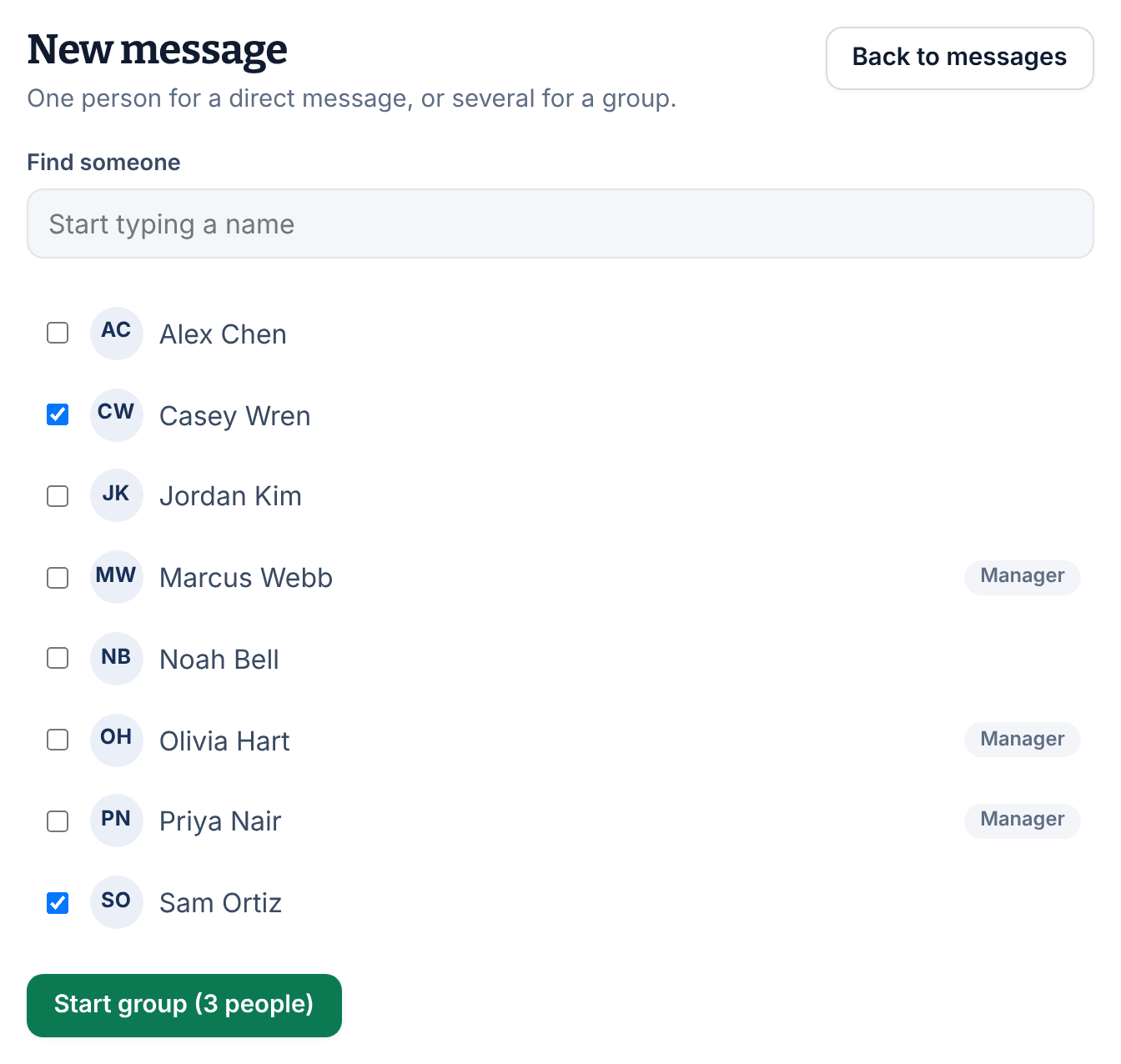
- In Find someone, type a name. Tick one person for a direct message, or several for a group.
- Select Start conversation. With more than one person ticked, the button counts everyone in the group, you included, for example Start group (3 people).
The conversation opens. Nobody is notified until you send the first message.
- Only people who have joined are listed. Someone who hasn't accepted their invitation yet doesn't appear.
- If you already have a direct message with the person you pick, it opens again.
- A group holds up to 20 people, you included. Groups have no name: they're titled with the members' names.
Send a message, photos or a PDF
- In Messages, open the conversation from the list.
- Type in the box at the bottom. To mention someone, type @ and the start of their name, then select them.
- To attach files, select the paperclip in the box. A message can carry up to 4 photos (JPEG, PNG or WebP, up to 5 MB each) and one PDF of up to 10 MB.
- Press Enter, or select the paper plane (Send). Shift+Enter starts a new line instead.
The buttons above the text add bold, italic, lists and links. To react to a message, or to change or remove one of yours, point to it and use the icons that appear. See Edit, delete, or report a message.
Find a conversation or a message
- Conversations are listed under Channels and Direct messages, which also holds groups. Point to a conversation and select its star to keep it under Starred, at the top. Only you see your stars.
- To search everything, select the magnifier above the list (Search messages) and type at least two letters. Conversations whose names match come first, then the ones where your words were said. Search matches whole words, so "delivery" finds a message that "deliv" doesn't.
- To search one conversation, open it and select the magnifier at the top right (Search this conversation).
Export a conversation
- Open the conversation and select the gear icon at the top right (Settings and notifications).
- Under Export, set From and To. One export covers up to 31 days.
- Select Download CSV.
The file lists each message with its sender and time. Photos and PDFs are counted rather than included, and removed messages are marked as removed.
Add people to a group or leave it
- Open the group, select the gear icon, then select the pencil beside About (Add or remove people).
- Under Add people, tick the people to add, then select Add.
- To leave the group, select Leave group, then Yes, leave the group.
Anyone in a group can add people. When you leave, your messages stay, and someone in the group has to add you back if you want to return.
Was this article helpful?