Mute or archive a conversation
Mute a channel or conversation to stop its notifications, or archive it to clear it from your list. Only you are affected, and you stay in it.
Muting a conversation stops its notifications. Archiving moves it out of your list. Both are your choice alone: you stay in the conversation, nobody is told, and you can change your mind at any time. Managers do this on the web, and employees in the Shift Amp app.
What the choices mean
Each conversation has its own notification choice:
- All messages: a notification for every message.
- Mentions only: a notification only when someone @mentions you.
- Muted: no notifications from this conversation.
- Default (All messages) or Default (Mentions only): your usual setting. Direct messages and groups notify you of every message. Channels notify you only when you're mentioned, unless you've changed that in your notification settings. See Choose your notifications.
An @mention still reaches you in a muted conversation. A muted conversation stays in your list and still shows how many messages you haven't read.
Archive for me moves the conversation to Archived at the bottom of your list. The next new message in it brings it back on its own.
On the web
Mute a conversation
- In the left menu, select Messages, then open the conversation.
- Select the gear icon at the top right (Settings and notifications).
- Under Notifications, select the choice you want. It's saved right away.
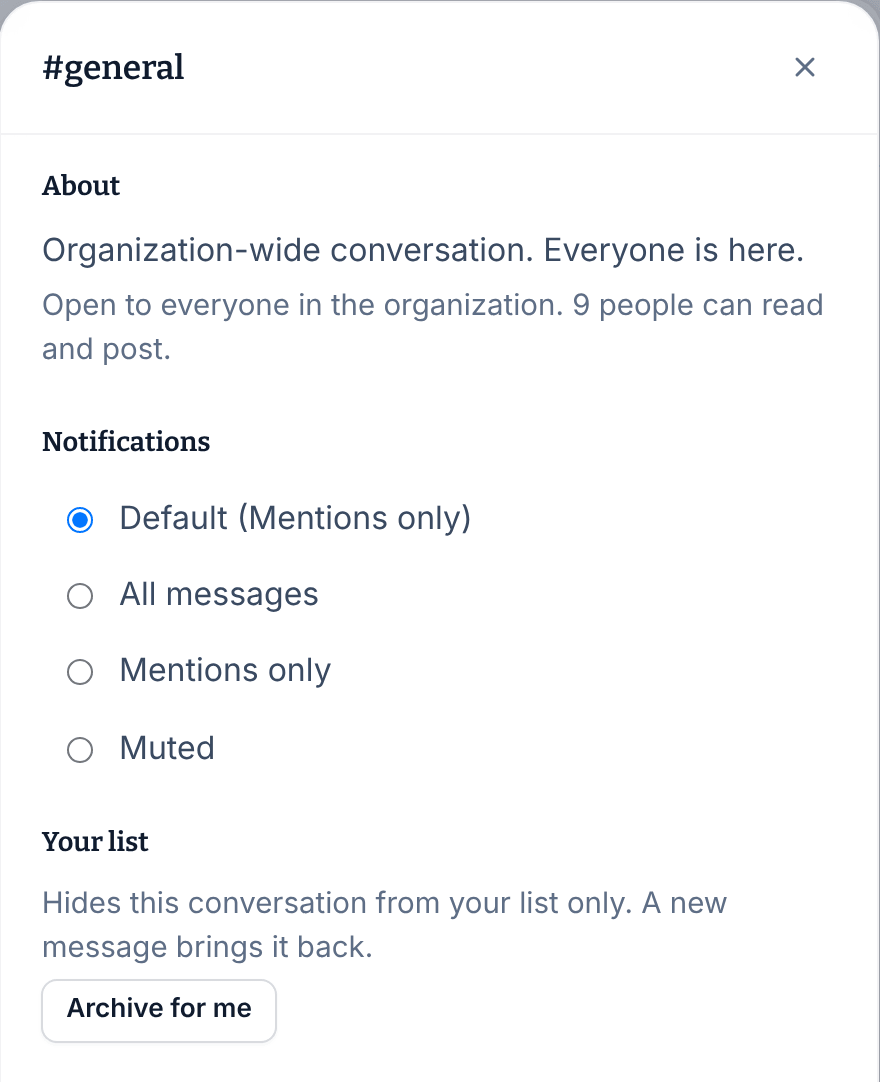
Archive a conversation
- Open the conversation and select the gear icon (Settings and notifications).
- Under Your list, select Archive for me.
To bring it back sooner, open it from Archived at the bottom of the list (the section starts folded). Select the gear icon, then Move back to Inbox.
In the app
Mute a conversation
- In the Messages tab (the speech-bubble icon), open the conversation.
- Select ⋯ at the top right. The Notifications for this conversation sheet opens.
- Select the choice you want.
The line under the conversation's name shows your choice, such as "Muted".
Archive a conversation
- Open the conversation and select ⋯ at the top right.
- Select Archive for me.
The conversation moves to Archived at the bottom of the Messages tab; select Archived to see it. To bring it back sooner, open it, select ⋯, then Move back to Inbox.
Leave instead
You can leave a group, but not a channel or a direct message. See Message coworkers in the app or Message your team.
Was this article helpful?