Fix a sign-in problem
Check which address your account uses, reset a forgotten password, and ask for a new link when one has expired. Google sign-in works on the web only.
Most sign-in problems come down to the email address, the password, or an email link that has expired. Find the message you see below. The web app and the phone app use the same account, so the same email address and password work in both.
What the sign-in messages mean
- "Incorrect email or password." The address and password don't match an account. Use the address your invitation was sent to, or the one you created your account with. If you've forgotten the password, select Forgot your password? and follow Reset your password.
- "Confirm your email first — check your inbox for the link we sent." You created an account but haven't confirmed it yet. Open the confirmation email from Shift Amp, select its link, then sign in.
- "Enter a valid email address." Check the address for a typo.
- "Could not sign you in. Please try again." Something went wrong on the way, so try again in a moment. In the app, the message is "Could not sign you in. Check your connection and try again."
If you closed your Shift Amp account, its address no longer signs in. To come back, ask your manager to invite you again.
If an email link has expired
Links in emails from Shift Amp work once, and only for a limited time.
- A red message on the sign-in page that starts "That email link is invalid or has expired" means the link didn't work. If it was the link to confirm your account, try signing in, because the link may already have done its job. If it was a password reset link, request a new one.
- On Set a new password, "Your reset link is invalid or has expired." means you need a new link. Select Request a new reset link.
- If an invitation has expired or no longer works, ask your manager to send a new one. See Join your team on Shift Amp.
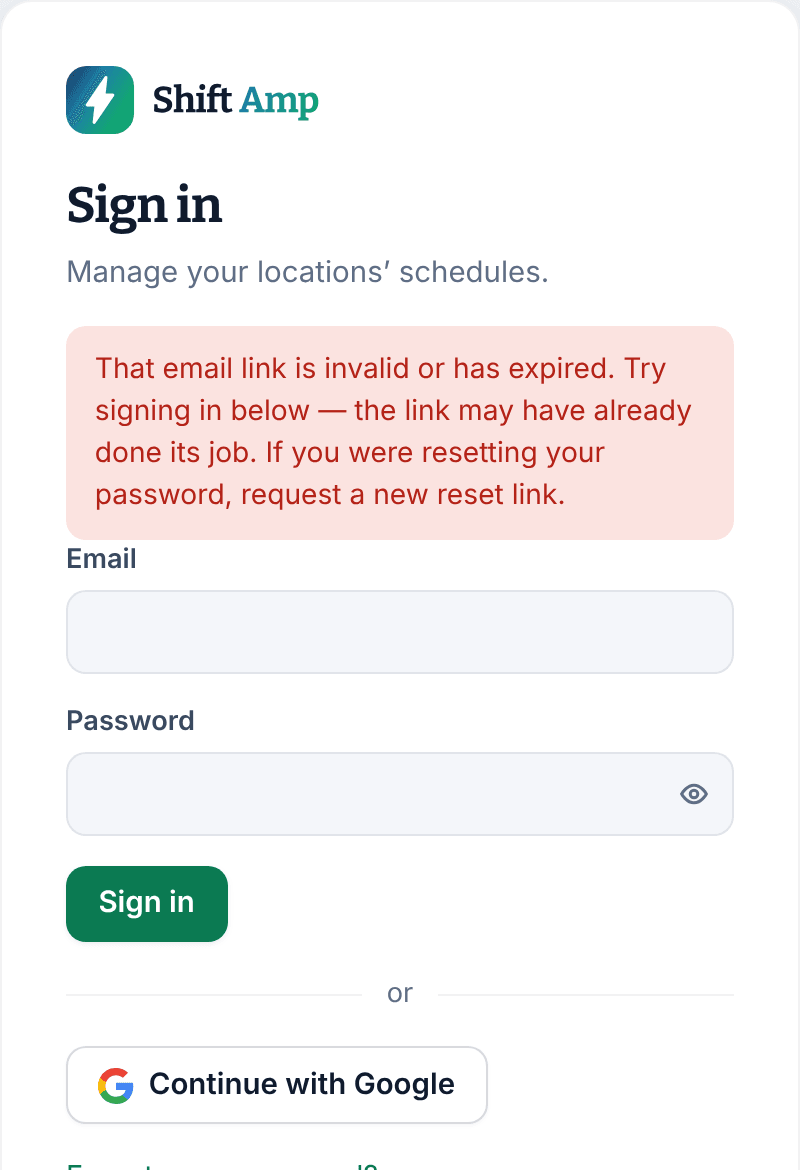
Sign in with Google on the web
On the web, you can sign in with a Google account instead of a password.
- On the sign-in page, select Continue with Google.
- Choose your Google account.
You come back to Shift Amp signed in. If no Shift Amp account uses that Google address yet, a new one is created and Shift Amp asks you to set up a business. If you're joining an employer, open their invitation first and use the Google account with the address the invitation was sent to.
If you see "Google sign-in couldn’t start. Try it again, or sign in with your email and password below.", follow its advice.
If the app says No employee access
No employee access means you're signed in, but your account isn't connected to an active employee record at any workplace. Usually the invitation was never accepted, you signed in with a different address from the one that was invited, or you're no longer on your workplace's active team. Select Sign out, then ask your manager to send you a new invitation.
Still stuck?
Your manager can resend your invitation or send you a password reset email. Managers can see Help someone who can't sign in.
Was this article helpful?