Sign out on every device
In Your account on the web, select Sign out everywhere to end every session, including the one you're using. After losing a phone, reset your password too.
Sign out everywhere ends every Shift Amp session for your account: on your phone, in every browser and on any other device, including the one you're using. Use it when you lose a phone, or after signing in on a computer that isn't yours. It's on the web, in Your account. The phone app doesn't have it, but employees can sign in on the web too.
Sign out everywhere
- In a web browser, go to app.shiftamp.com and sign in if you need to.
- Open the account menu at the bottom of the left menu (your name) and select Your account.
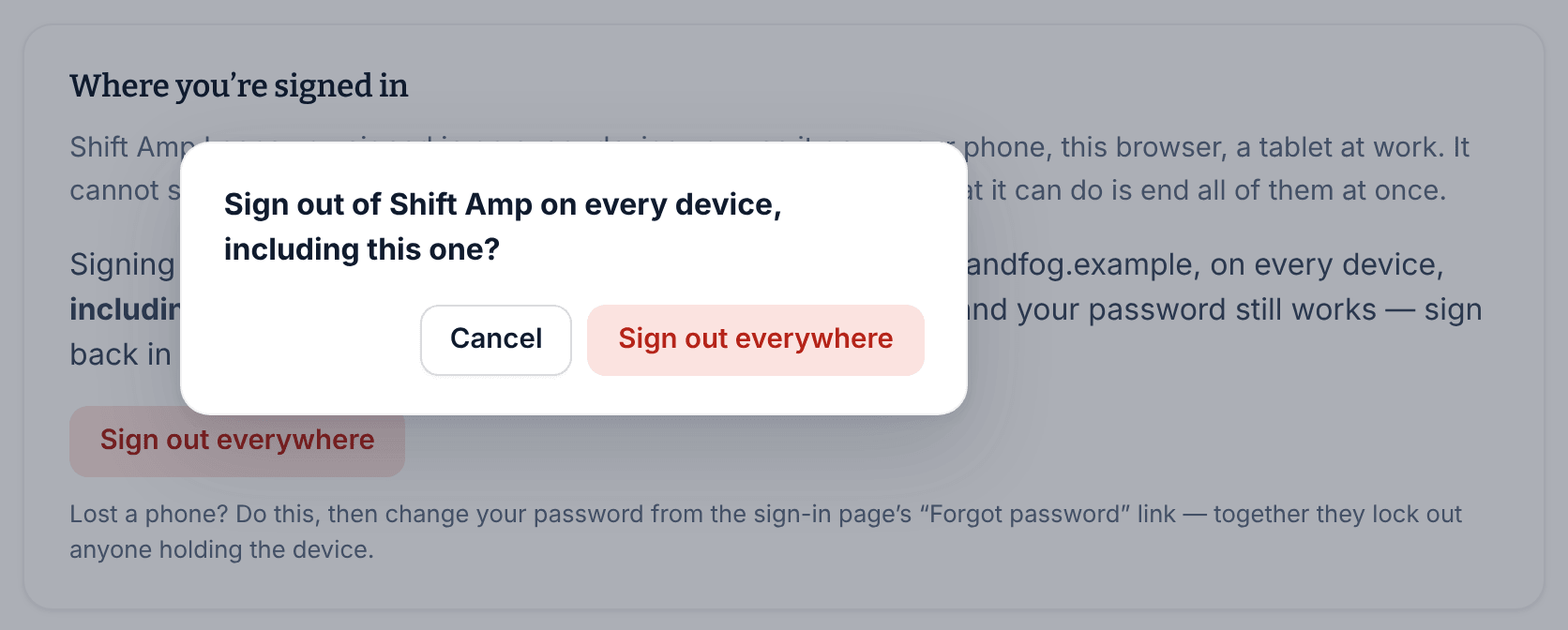
- Under Where you’re signed in, select Sign out everywhere.
- Select Sign out everywhere again to confirm.
You're signed out, and the sign-in page says "You’re signed out on every device. Sign back in below wherever you still want to be — and if a device was lost, change your password too."
If you lost a phone
Signing out everywhere doesn't change your password, so anyone who knows it could sign back in. After you've signed out everywhere:
- On the sign-in page, select Forgot your password?.
- Follow the emailed link to choose a new password. See Reset your password.
- Sign back in on the devices you still use, including the Shift Amp app on a new phone.
What stays the same
- Your password keeps working until you change it.
- Your account, your organizations, your schedule and your settings stay as they are. Nobody is notified.
- If you're clocked in, you stay clocked in. Signing out never clocks you out.
- Shift Amp can't show a list of the devices you're signed in on, so this button ends all of them rather than one at a time.
To change the address you sign in with, see Change your sign-in email.
Was this article helpful?