Reset your password
Ask for a reset link from the sign-in page, on the web or in the app, then choose a new password on the page the emailed link opens.
If you've forgotten your password, ask for a reset link from the sign-in page, on the web or in the phone app. The link opens a page in your browser where you choose a new password. Shift Amp has no setting for changing a password while you're signed in, so to change one you know, sign out and follow the same steps.
On the web
- Go to app.shiftamp.com. If you're signed in, open the account menu at the bottom of the left menu (your name) and select Sign out.
- On the sign-in page, select Forgot your password?.
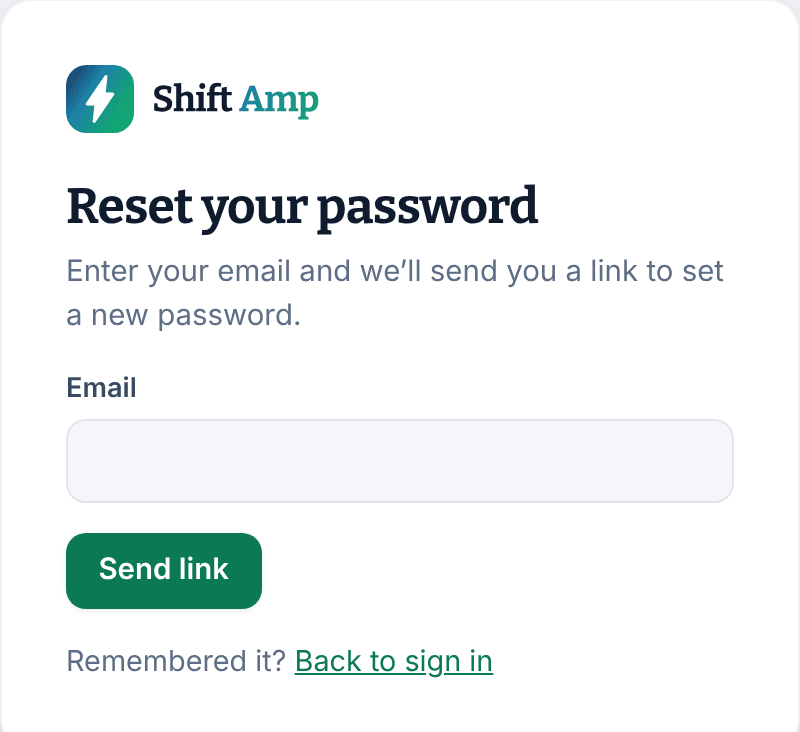
- Enter your address in Email and select Send link.
- Open the email from Shift Amp and select the link in it.
- On Set a new password, enter a New password and select Save password.
Your new password works right away, and you're signed in. It needs at least 8 characters, including a lowercase letter, an uppercase letter, a number and a symbol, such as ! or #.
In the app
- If you're signed in, select the More tab (three dots), then Sign out, and confirm.
- On the app's sign-in screen, select Forgot your password?.
- Enter your address in Email and select Send reset link.
- On your phone, open the email from Shift Amp and select the link. Set a new password opens in your browser.
- Enter a New password and select Save password.
- Go back to the Shift Amp app and sign in with your new password.
If you've only signed in with Google on the web, these steps give your account a password, which the app needs.
If the email doesn't arrive
- Check your spam or junk folder.
- Make sure you entered the address you sign in with. The confirmation looks the same whether or not an account uses that address, so a typo isn't flagged.
- In the app, the confirmation also appears when your phone couldn't reach Shift Amp. Check your connection and send the link again.
- If you see "Too many reset emails requested. Wait a few minutes and try again.", wait a few minutes before asking again.
If the link doesn't work
Each link works once, and only for a limited time. If the page says "Your reset link is invalid or has expired.", select Request a new reset link and start again. If you see "New password must be different from your current password.", choose a different password. For other messages, see Fix a sign-in problem.
Lost a phone? Sign out of every device before you reset your password, so nobody holding the phone stays signed in. See Sign out on every device.
Was this article helpful?