Set a weekly hours limit
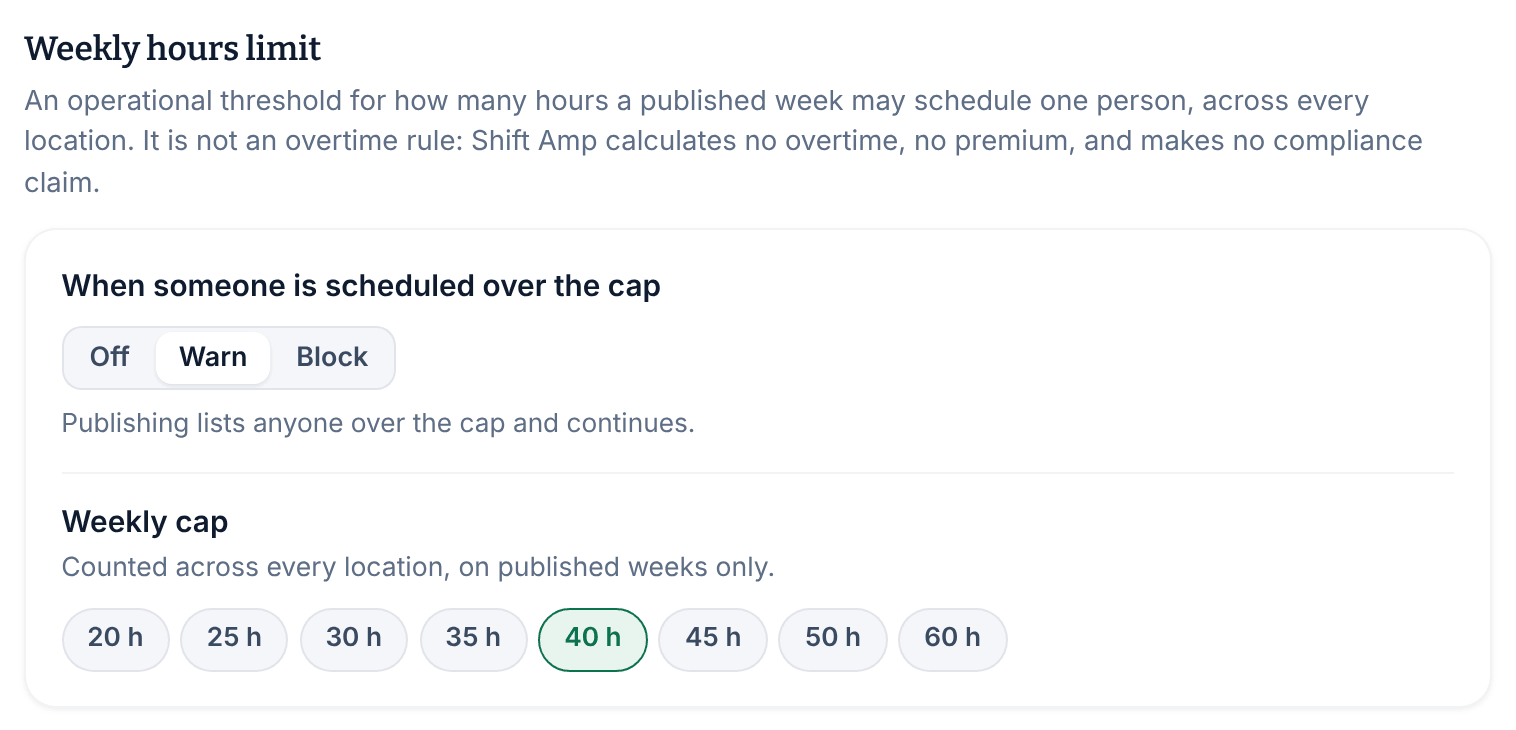
Choose a weekly cap on scheduled hours per person, and whether going over it only warns you or stops publishing, claim approvals and reassignments.
The weekly hours limit caps how many hours one person can be scheduled in a published week, counted across every location. You choose whether going over the cap only warns you or stops the change. Only owners and operations administrators can change it. Other managers see the setting but can't change it.
The limit is a scheduling threshold, not an overtime rule. Shift Amp calculates no overtime and no pay.
Set the limit
- Open the account menu at the bottom of the left menu (your name), select Settings, then select Scheduling.
- Under Weekly hours limit, choose Warn or Block for When someone is scheduled over the cap.
- Under Weekly cap, choose the number of hours, from 20 h to 60 h. It starts at 40 h.
- Select Save policy.
- If you chose Block, a confirmation explains what will be refused. Select Save policy again.
The page says "Scheduling policy saved." To turn the limit off again, choose Off and save.
What each choice does
- Off is the default. Shift Amp makes no weekly-hours checks when you publish or approve.
- Warn lets publishing go ahead when someone is over the cap.
- Block stops a publish, a claim approval or a reassignment that would put someone over the cap. Managers can't override it.
Going exactly up to the cap is allowed. Only hours past it count as over.
If someone has their own Maximum hours each week on their record, the lower of the two limits applies to them. The badge on the schedule doesn't show this: it compares hours only with your organization's cap. See Update someone's details.
Spot people over the cap on the schedule
While the limit is set to Warn or Block, a badge such as Over 40h cap appears beside the weekly hours of anyone over the cap. Check for these badges before you publish. If Block stops a publish, the message doesn't mention hours. Clear your filters, look for the badges, and check the hours of anyone with their own maximum.
Saving a shift never checks the cap. It's checked when you publish, and when you approve a claim or reassign a published shift.
Auto-assign never schedules anyone past the cap, even while the limit is Off. See Fill shifts with Auto-assign.
Was this article helpful?
More in Building the week
- Add a shift
- Move, copy, or delete shifts
- Understand conflict flags
- Copy last week
- Save and reuse a week template
- Reuse common shifts with templates
- Set up a repeating shift
- Fill shifts with Auto-assign
- Edit several shifts at once
- Add a day note or close a day
- Change how the schedule looks
- Add a checklist to a shift
- Change the first day of the week
- All of Scheduling