Find people and export your roster
Search the list of names, or open the People list to filter by status, location, position or account, and download it as a CSV file.
Everyone on your roster is under People. Search the list of names to open someone's record, or open the People list to filter the whole roster and download it. Organization owners and operations administrators see everyone. Location managers and assistant managers see the people at the locations they manage.
Find someone by name
- In the left menu, select Organization, then People. A person's record opens, with the list of names beside it.
- Select Search people (the magnifying glass) at the top of the list of names, and type a name or email address.
- Select the person to open their record.
Active people are listed first, and archived people are in the Archived section below them. Hidden people aren't in this list. Use the People list to find them.
Open the People list
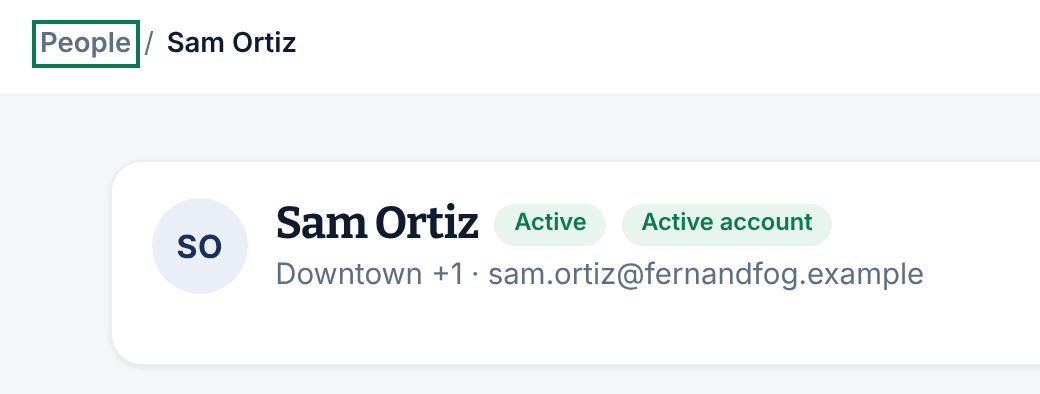
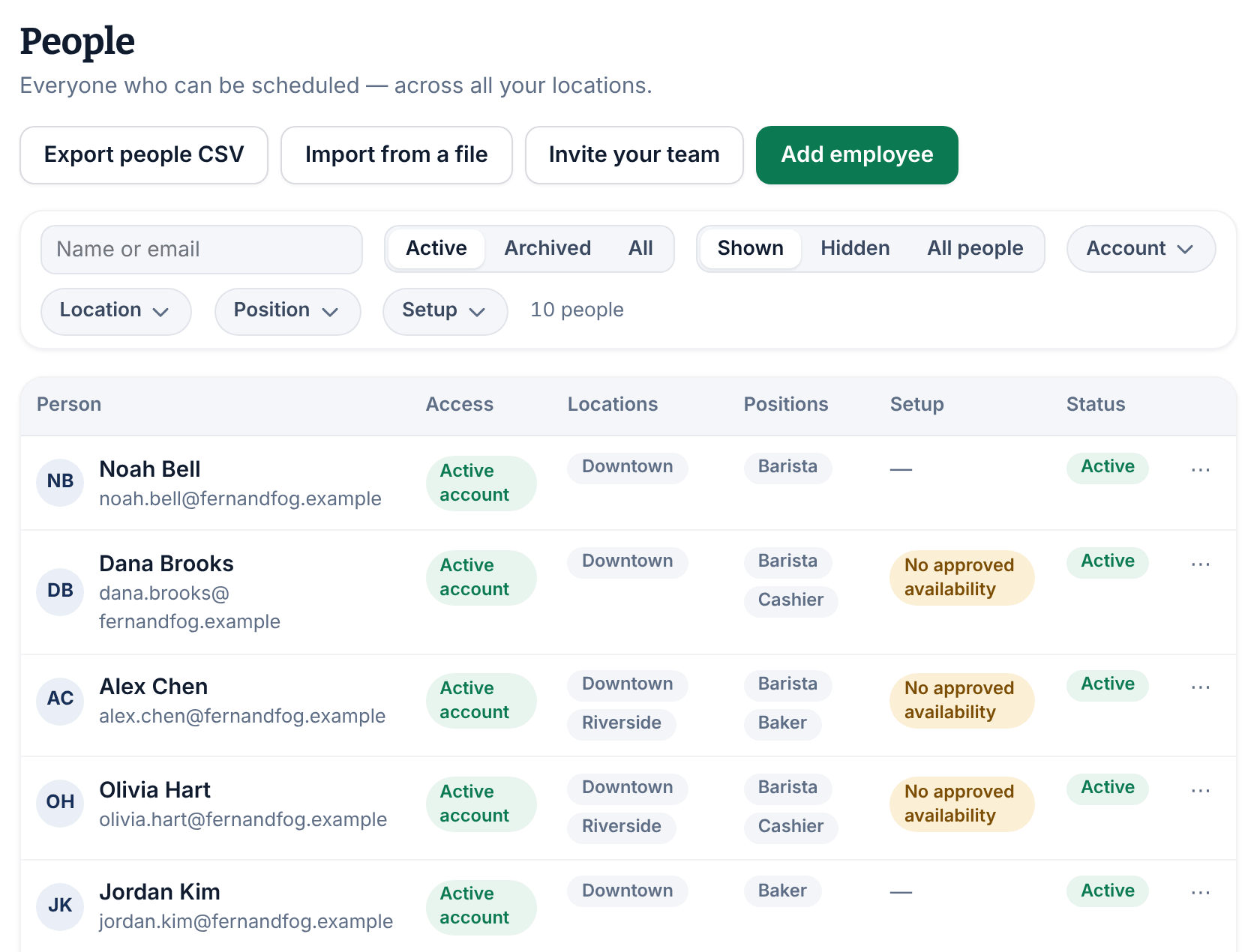
On any person's record, select People above their name. The People list shows your roster as a table, 25 people to a page, with each person's Access, Locations, Positions, Setup and Status.
Filter the list
Filters apply as soon as you change them:
- Search: part of a name or email address.
- Status: Active, Archived or All.
- Visibility: Shown, Hidden or All people. Hidden people appear only with Hidden or All people.
- Account: where they stand with the app, such as Active account or Not invited.
- Location and Position: shown when you have more than one.
- Setup: something missing, such as No position or No approved availability.
Clear all takes you back to active people who are shown on the schedule.
Download your roster
- Set the filters to the people you want. To include everyone, set Status to All and Visibility to All people.
- Select Export people CSV.
Your browser downloads a CSV file of the people in your current view. Location managers and assistant managers get only the people they can see.
The file includes each person's names, employee ID, contact details, status, app account state, hire date, locations, positions and weekly hours (in minutes). It never includes pay rates, availability, time-off reasons or manager notes. To fill your roster from a file instead, see Import your team from a spreadsheet.
Was this article helpful?