Find your way around Shift Amp
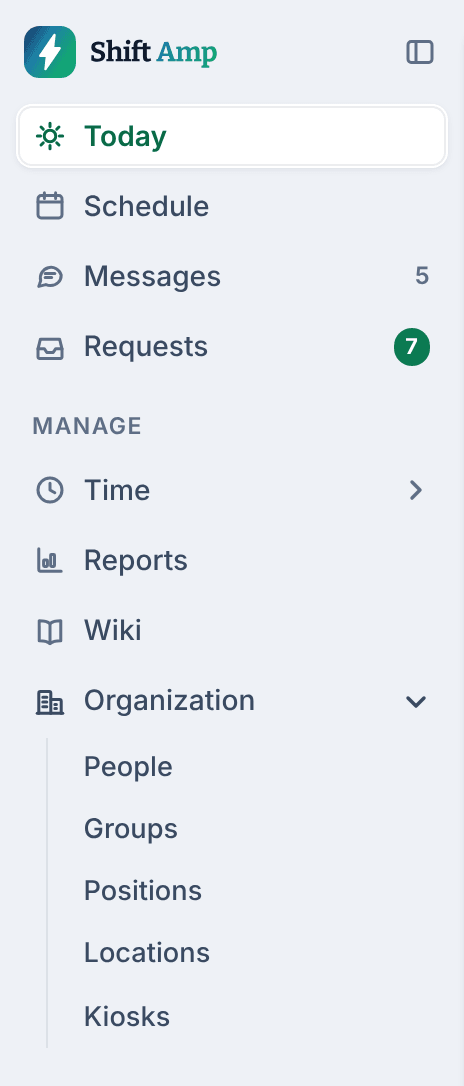
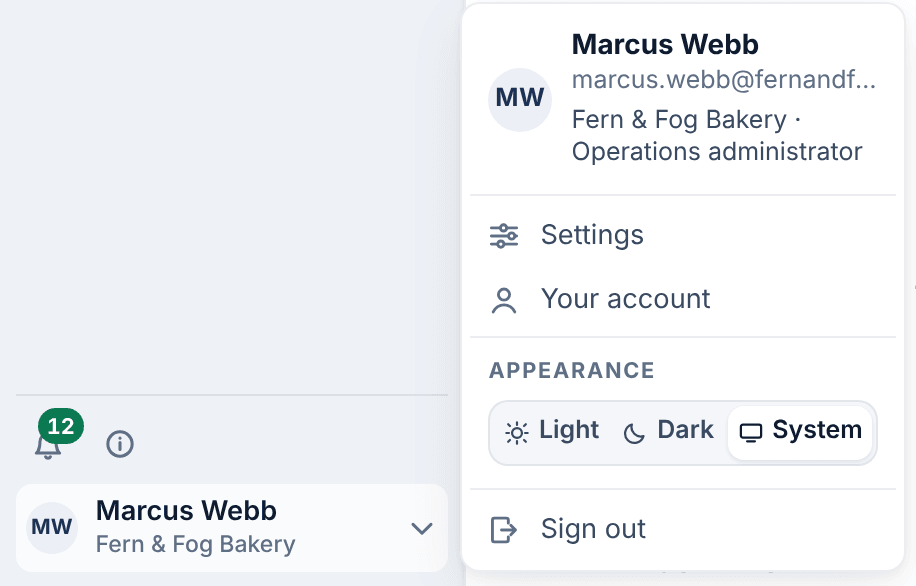
The left menu lists what your role can use, with counts of what's waiting. Settings and your account are in the menu under your name at the bottom.
Everything in Shift Amp on the web starts from the left menu. What it lists depends on your role, and the numbers beside some items show what's new or waiting for you. Settings isn't in the left menu itself: it's in the menu under your name, at the bottom.
What's in the left menu
At the top, every manager has:
- Today: what's happening at your locations right now.
- Schedule: build, publish and change each week.
- Messages: channels and conversations with your team.
- Requests: coverage, availability and time-off requests waiting for a manager.
Under Manage:
- Time, with Time clock (who's working right now) and Timesheets (each person's week of hours).
- Reports and Wiki.
- Organization, with People. Owners and operations administrators also have Groups, Positions, Locations and Kiosks here.
Select Time or Organization to see what's inside. The Shift Amp logo at the top always takes you back to Today.
Employees see only Today, Schedule and Time clock on the web. See Use Shift Amp in a web browser.
What the numbers mean
- The number beside Requests is how many requests are waiting for a decision in the queues you can see. See Work through requests waiting on you.
- The number beside Messages is how many messages you haven't read.
- The number on the bell at the bottom of the menu is how many notifications you haven't read. Select the bell to see them all.
A count disappears when there's nothing to show, and shows "99+" above 99.
Open Settings
- At the bottom of the left menu, select your name. The menu that opens shows your email, your organization and your role, for example "Fern & Fog Bakery · Location manager".
- Select Settings.
Settings opens over the page you're on, and closing it takes you back. You can also press Ctrl+, (Cmd+, on a Mac). Under You are your own My preferences and Notifications. Under your organization's name are the settings for everyone. Only owners and operations administrators can change those. Location managers and assistant managers can view some of them, and Billing is for the Organization owner only.
The same menu has Your account (your sign-in email, signing out everywhere, and closing your account), Appearance (Light, Dark or System) and Sign out.
Get help on the page you're on
On Today, Schedule, the Requests queues, Time clock and Timesheets, select ⓘ at the bottom of the left menu, or press ?. A panel explains what the page shows and how it works.
Make more room
Select the panel icon beside the Shift Amp logo to shrink the menu to icons, and select it again to expand it. Your browser remembers the choice. On pages with a list of their own, such as Requests and People, the menu starts as icons. In a narrow window, the menu hides behind a menu button at the top of the page.
If you work for more than one business, its name appears under the logo. Select it to switch: see Work for more than one business.
Was this article helpful?