Set up Shift Amp for your business
Create an account, then finish three steps: name your business and its first location, add the positions you schedule, and add your team.
Setting up takes a few minutes: create your account, then complete three short steps for your business, your positions and your team. Whoever creates the account becomes the business's Organization owner. If your employer invited you, accept the invitation instead: see Join your team on Shift Amp.
Create your account
- Go to app.shiftamp.com and select Create an account.
- Enter your First name, Last name, Email and a Password. The password needs at least 8 characters, with a lowercase letter, an uppercase letter, a number and a symbol.
- Select Create account.
- Select the link in the confirmation email Shift Amp sends you. The first setup step opens.
You can also select Continue with Google instead of choosing a password. If you stop partway, sign in again later: setup picks up where you left off.
Add your business and first location
- In Business name, enter the name your team knows, such as Fern & Fog Bakery.
- If you like, choose your industry and team size. The industry only suggests positions for the next step.
- Under How many locations?, choose Just one or More than one. With one location, it takes your business's name. With more than one, enter the First location name, such as Downtown. You add the others later.
- Check the Location time zone. Shift Amp suggests your browser's time zone, so change it if the location is somewhere else. Every shift time at this location uses this zone.
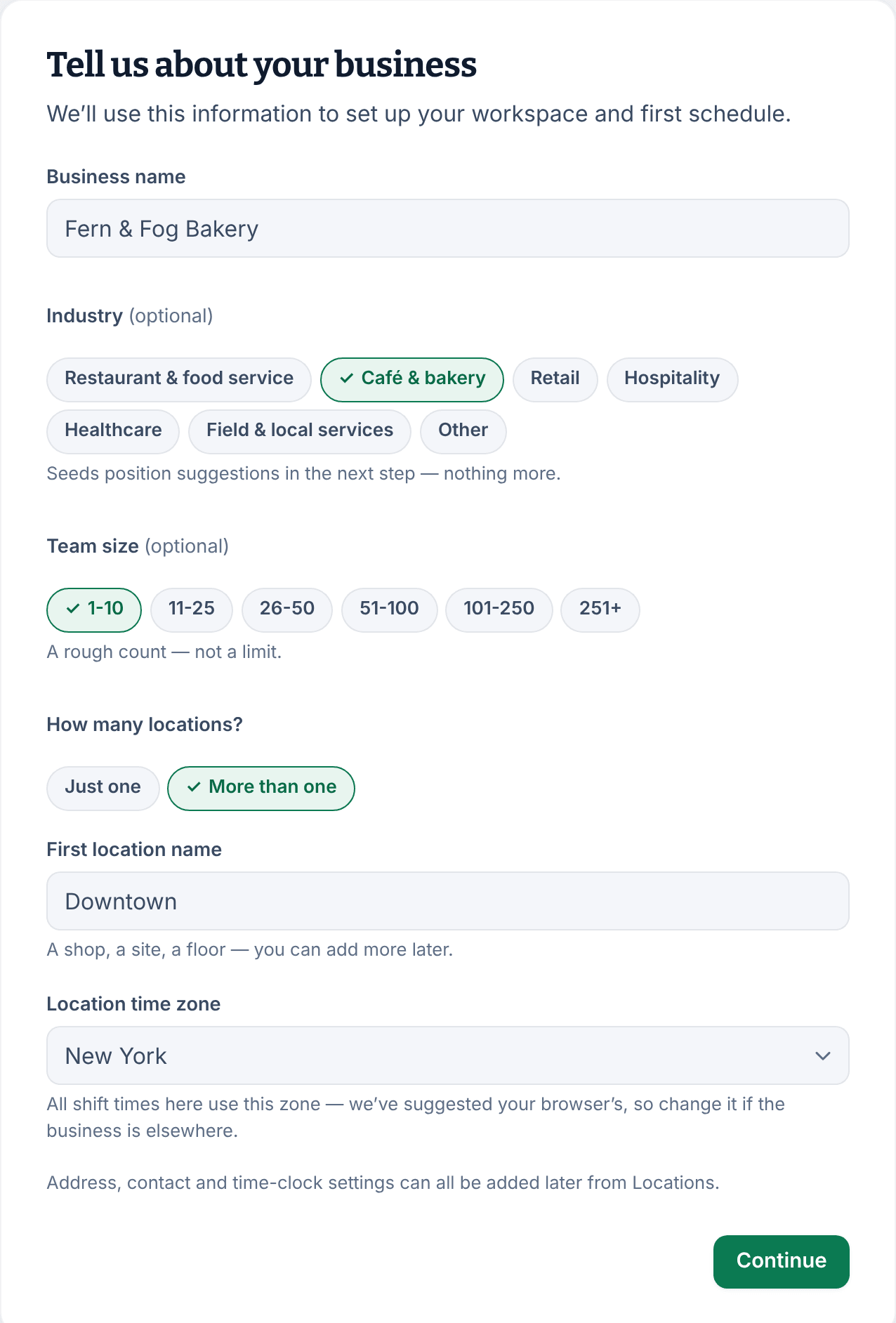
- Select Continue.
Add the positions you schedule
Every shift needs a position, such as Barista or Cashier.
- Under Suggestions, select the positions that fit. To add your own, type it in Add a position and select Add.
- To remove a position, select the trash icon beside it.
- Select Continue once you have at least one position.
Add your team
You're on the roster too. Shift Amp adds you automatically, with no invitation.
- Check your name. If you have more than one position, tick yours under Your positions.
- Under Employees, enter each person's First name, Last name and Email, up to 20 people. If you have more than one position or location, choose their Positions and Locations too. Select Add another employee for each new row, or paste names and emails from a spreadsheet. A new row starts with the positions of the row above it, so check them.
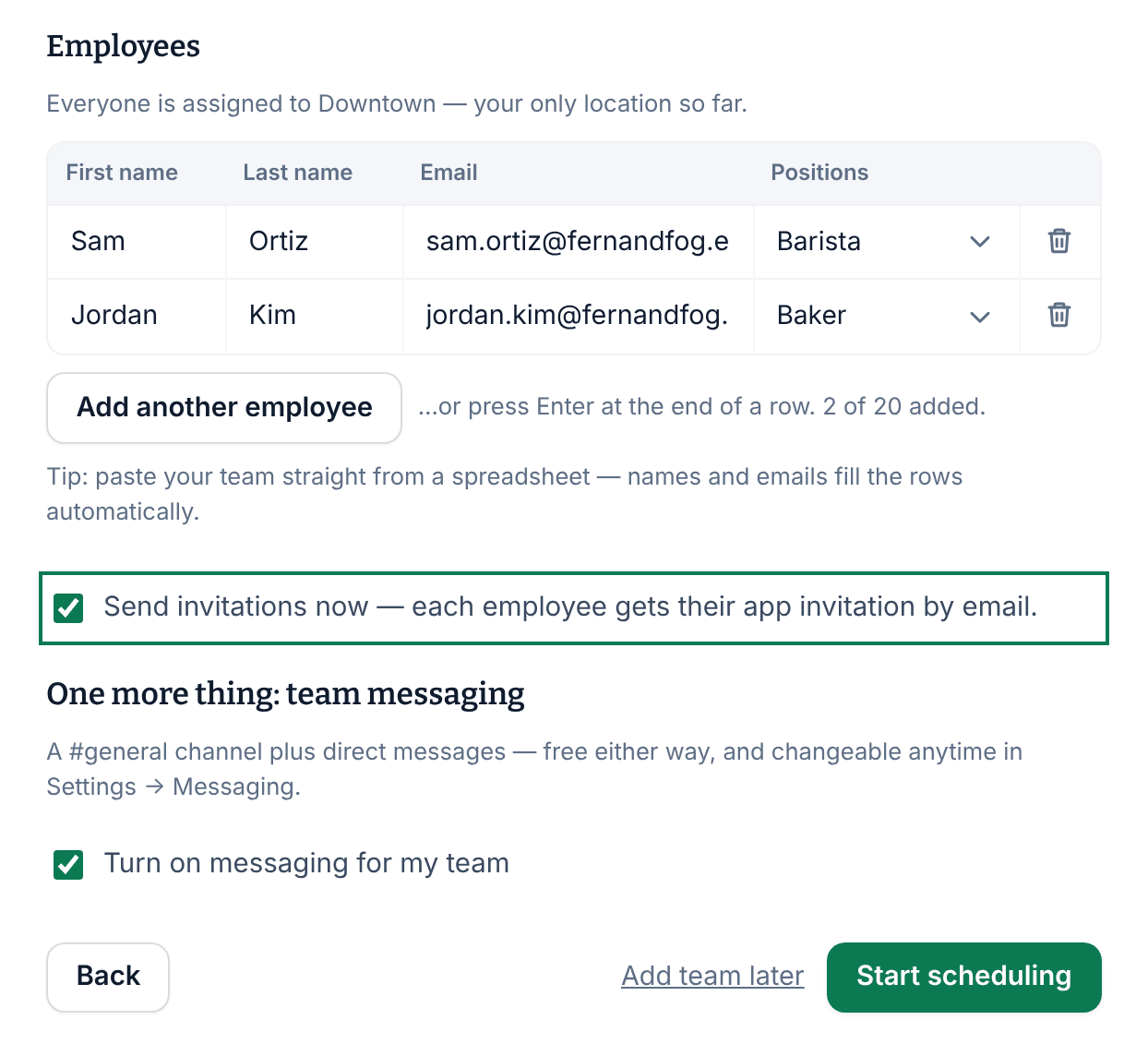
- Leave Send invitations now — each employee gets their app invitation by email. ticked.
- Leave Turn on messaging for my team ticked for a #general channel and direct messages. You can change this later in Settings, under Messaging.
- Select Start scheduling.
To skip this step, select Add team later. Nothing you typed in the rows is kept, and no invitations go out.
What happens next
Your schedule for the current week opens with the message "Your workspace is ready." It also says how many invitations went out. If one couldn't be delivered, you can resend it from People.
- To follow your invitations, see Invite your team to the app.
- To build your first week, see Add a shift and Publish a week.
- To add locations, see Add a location.
- To grow past 10 people, see Add people past the free plan.
Was this article helpful?