Add a missing time entry
If someone worked without clocking in, record the work on their timecard. The entry is flagged for review, so check it before you approve the week.
When someone works but never clocks in, add the time to their timecard yourself. Owners, operations administrators and location managers can add entries for people at their locations. Assistant managers can't.
Before you start
- The entry needs a start and a finish. If the person is still working, ask them to clock in themselves.
- The person needs a location and a position. If they have none, see Change someone's locations and positions.
- If the week is approved, reopen it first. See Review and approve timesheets.
- If they already reported the shift from the Shift Amp app, record it from their report instead, so the report is settled too. See the last section below.
Add the entry
- In the left menu, select Time, then Timesheets.
- Go to the week with ← Previous week or Next week →, then select the person's name.
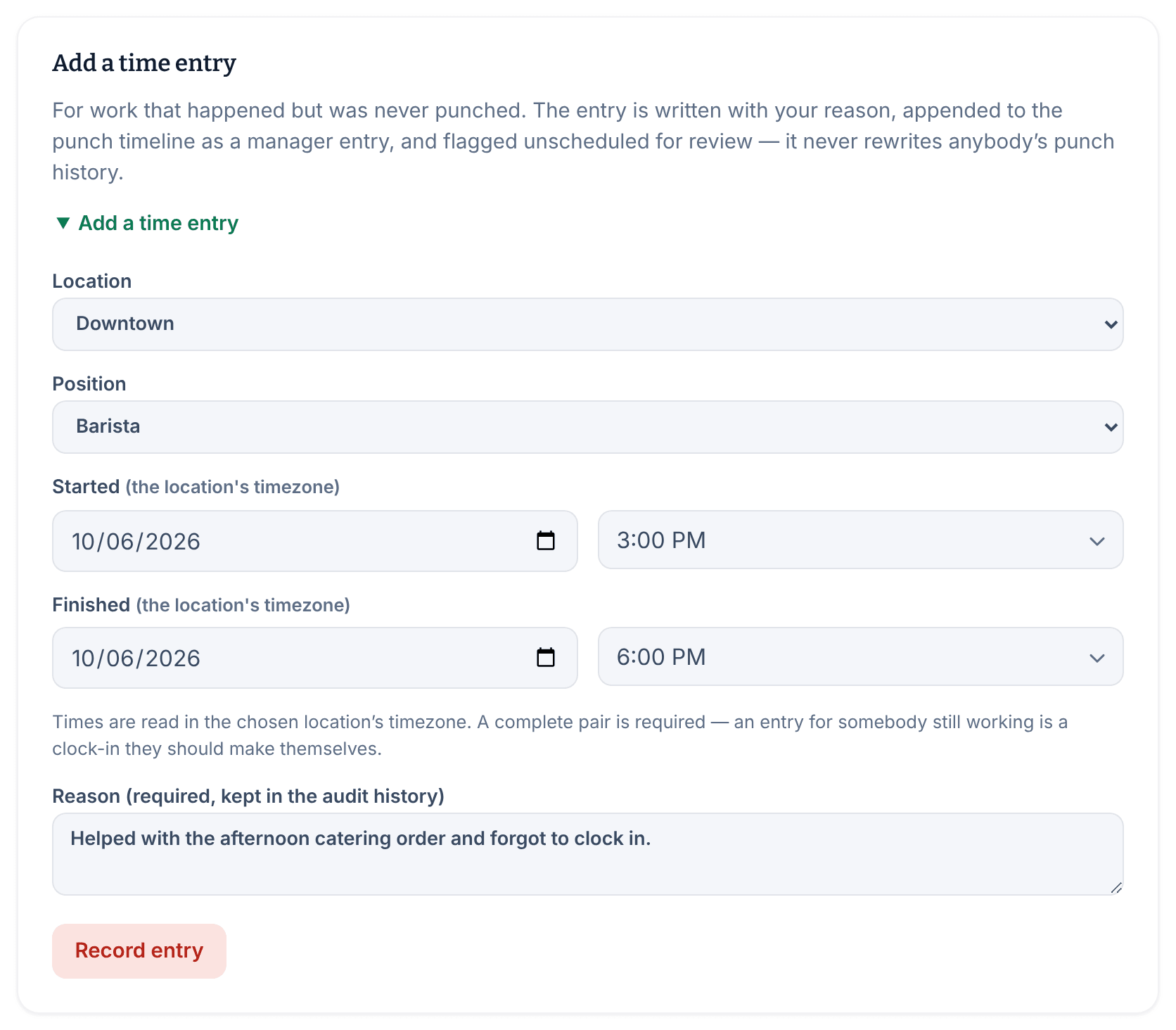
- Near the bottom of the timecard, under Add a time entry, select Add a time entry. The form opens.
- Choose the Location and Position they worked.
- Set the date and time they began under Started, and when they stopped under Finished. Times are read in the chosen location's time zone.
- In Reason (required, kept in the audit history), say what happened.
- Select Record entry, then select Record entry again to confirm.
The message "Entry recorded. It is flagged as unscheduled for review." confirms it. The new entry appears on the timecard with an Unscheduled badge. Its punches show as Manager entry under Punch timeline, and Adjustments lists it with your reason. The employee isn't notified.
Clear the flag before you approve
Every entry you add is flagged "No matching scheduled shift", and the week can't be approved until the flag is cleared. You can clear it in either of two ways:
- Link the entry to the shift they worked: select Correct the linked shift, choose the shift under Scheduled shift, enter a reason, then select Correct link and confirm. Linking clears the flag.
- Under Review flags, select Mark reviewed.
See Clear flags on a timecard.
If they reported it from the app
Employees can report a shift they worked without punching from the Shift Amp app. The report shows on their timecard under Reports without a matching entry, on every week, until someone decides it.
- Under the report, select Record the missing entry (settles this report). The date and any times they suggested are filled in.
- Choose the Location and Position, check the times, and enter a reason.
- Select Record entry, then confirm.
The report is settled and the employee is notified. To turn the report down instead, see Respond to a reported time problem.
Was this article helpful?