Respond to a reported time problem
When someone reports a problem with a time entry, make the matching fix on their timecard, deny it, or mark it resolved. The employee hears what you decided.
Employees can report that one of their time entries is wrong. A report never changes the entry: you decide it on the person's timecard. Owners, operations administrators and the location's managers get a Time correction requested notification and can decide it. Assistant managers aren't notified and can't decide reports.
Find the report
Select the notification: it opens the person's timecard for that week. Or, in the left menu, select Time, then Timesheets, and select a name whose week reads Needs review.
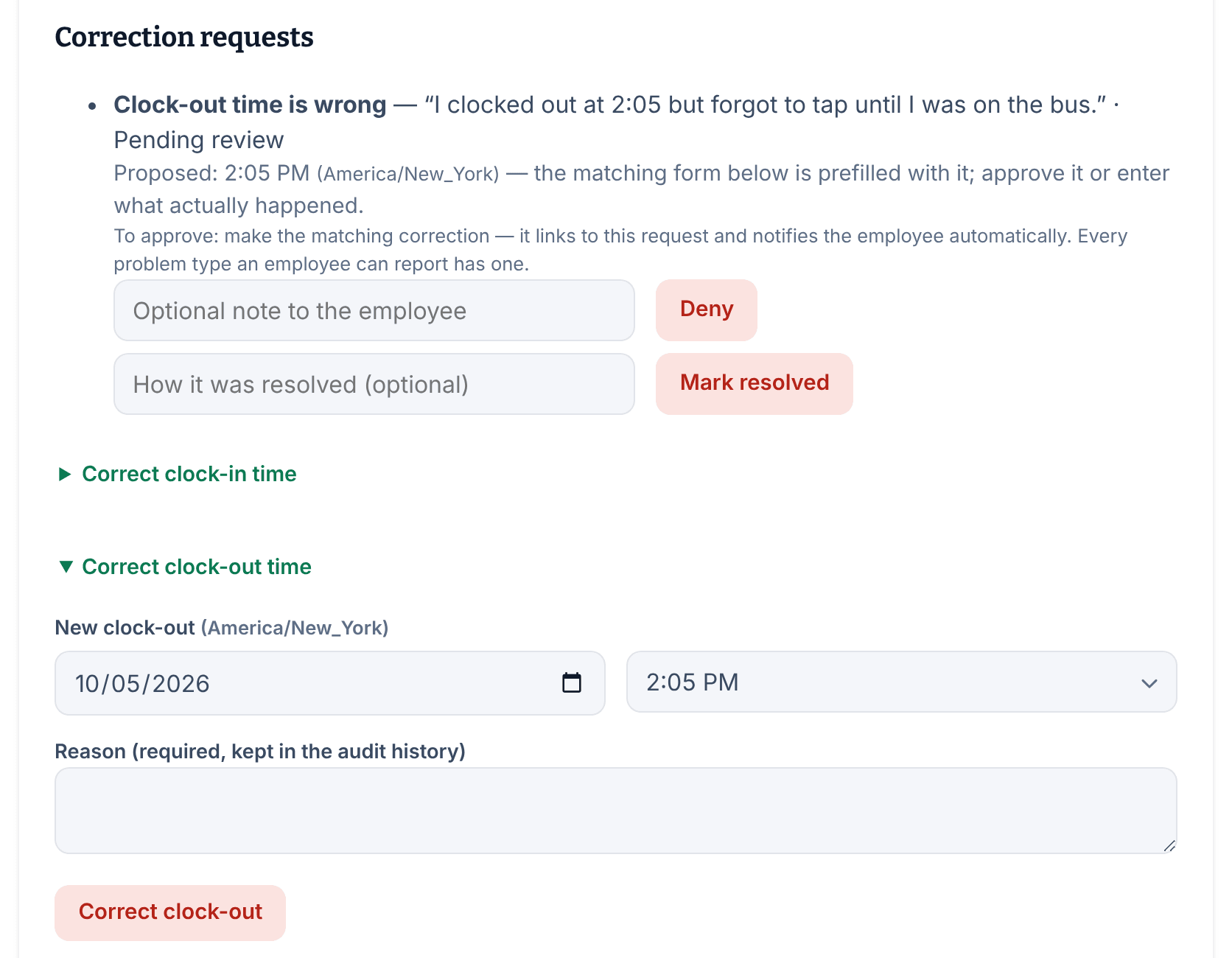
The entry shows the report under Correction requests: the problem, the employee's note, and "Pending review". If they suggested a time, a line starting "Proposed:" shows it, and the matching form below is filled in with it.
Apply the fix
Make the correction that matches the problem:
- "I forgot to clock out": Add missing clock-out
- "Clock-in time is wrong": Correct clock-in time
- "Clock-out time is wrong": Correct clock-out time
- "A break is wrong or missing": Correct break times or Add missing break
- "The location is wrong" or "The position is wrong": Fix the location or position (settles this report)
- "Linked to the wrong shift": Fix the linked shift (settles this report)
"Something else" has no matching correction. Decide it with Deny or Mark resolved.
- Open the form, check the suggested time or choose the right value, and enter a reason.
- Select the button at the bottom of the form, then select it again to confirm.
The report now reads "Approved — entry corrected", and the employee gets a Time correction approved notification. The original punch stays in the history.
Deny it, or close it another way
- To keep the entry as recorded, add an Optional note to the employee if you like, then select Deny and confirm. The report reads "Reviewed — entry unchanged", and the employee gets Time correction reviewed.
- If you handled the problem another way, you can say how in How it was resolved (optional). Select Mark resolved and confirm. The employee gets Time correction resolved.
The employee sees your note with the decision.
A shift with no punches
Reports of "I forgot to clock in" come from the Shift Amp app and show under Reports without a matching entry. Select Record the missing entry (settles this report) to add the entry, or use Deny or Mark resolved. See Add a missing time entry.
Once a report is decided, its "Correction request awaiting review" flag clears by itself.
Was this article helpful?