Add a day note or close a day
Leave a note on a day that only managers see, or mark the location closed with a reason your team sees in the Shift Amp app.
Each day on the schedule can carry a note for your managers, and can be marked closed for a holiday or a stocktake. Any manager who schedules the location can add one, on draft and published weeks alike. Nobody is notified.
Add a note for managers
- In the left menu, select Schedule, then go to the week.
- Under the day's date, select + Note.
- If you schedule more than one location, choose the Location.
- Type your note in Note (managers only).
- Select Save.
The button under the date now reads ✎ Note. Hover over it to read the note. Employees never see it, anywhere in Shift Amp.
Close a day
- Under the day's date, select + Note, or ✎ Note if the day already has a note.
- Tick Business closed this day.
- In Reason (employees see this), say why, such as Thanksgiving.
- Select Save.
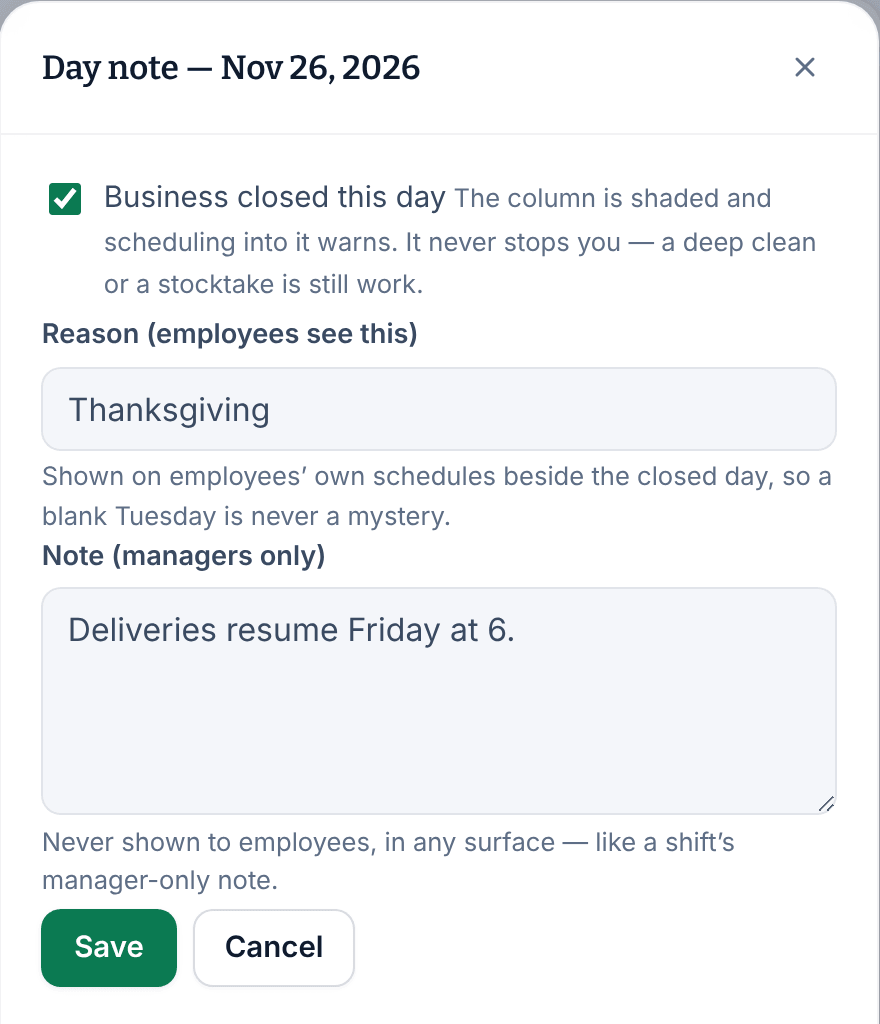
The day's column is shaded, and its header shows the reason, for example "Closed — Thanksgiving". Employees who work at that location see the closed day and its reason on their schedule in the Shift Amp app, up to four weeks ahead. They can see it even if the week isn't published yet.
Change or remove a note
- Under the day's date, select ✎ Note.
- Change the note or the reason, then select Save. To remove the note and reopen the day, select Clear this day.
Each location has its own notes. If you schedule more than one location, choose the Location in the panel to see or change that location's note.
Was this article helpful?
More in Building the week
- Add a shift
- Move, copy, or delete shifts
- Understand conflict flags
- Copy last week
- Save and reuse a week template
- Reuse common shifts with templates
- Set up a repeating shift
- Fill shifts with Auto-assign
- Edit several shifts at once
- Change how the schedule looks
- Add a checklist to a shift
- Set a weekly hours limit
- Change the first day of the week
- All of Scheduling