Move, copy, or delete shifts
Drag a draft shift to another day or person, or use its menu to duplicate, unassign or delete it. To change a published week, create a revision.
While a week is a draft, you can drag shifts around, duplicate them, take people off them or delete them. Any manager who schedules the location can do this, and nobody is notified. Published shifts are locked: to change them, create a revision.
Move a shift to another day or person
Dragging works only when the rows are arranged By employee, and only on draft shifts.
- In the left menu, select Schedule, then go to the week.
- Make sure By employee is selected above the grid.
- Drag the shift card onto another day, another person's row, or both. To take the person off the shift, drag it onto the Unassigned & open row.
- As you drag, check the cell under the card. If the person can't work the shift there, the cell turns red and lists the reasons, such as "On approved time off", and the card won't drop there.
- Drop the card.
The shift keeps its times, location, position, notes and planned break. If the move still can't be saved, nothing changes and a message on the schedule says why.
Dragging never overrides a warning. To give the shift to someone who needs an override, open the shift instead. See Understand conflict flags.
Duplicate a shift
- Hover over the shift card and select ⋯ at its top right.
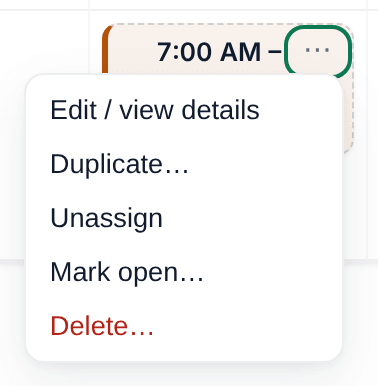
- Select Duplicate…. The Duplicate shift panel opens with a copy of the shift, including its person, times and notes.
- Change the Date, the Employee, or both. A copy with the same person at the same time would overlap the original.
- Select Save draft shift.
Take someone off a shift
Select ⋯ on the card, then Unassign. It doesn't ask first: the shift moves to the Unassigned & open row with nobody on it. Unassigned shifts become open shifts when you first publish the week, unless you assign someone first.
To invite claims instead, select Mark open…, then Mark open. Anyone on the shift is taken off, and eligible employees can claim it once the week is published.
Delete a shift
- Select ⋯ on the card, then Delete….
- Select Delete shift to confirm.
You can also open the shift and select Delete draft shift, then confirm. If the shift is part of a repeat, that button reads Delete this shift only, and the date won't come back. See Set up a repeating shift.
Change shifts in a published week
Published shift cards have no menu and can't be dragged. Select Create revision…, make your changes in the revision, then publish it. See Change a published week.
To change, open or delete many shifts at once, see Edit several shifts at once.
Was this article helpful?
More in Building the week
- Add a shift
- Understand conflict flags
- Copy last week
- Save and reuse a week template
- Reuse common shifts with templates
- Set up a repeating shift
- Fill shifts with Auto-assign
- Edit several shifts at once
- Add a day note or close a day
- Change how the schedule looks
- Add a checklist to a shift
- Set a weekly hours limit
- Change the first day of the week
- All of Scheduling