Save and reuse a week template
Save a week's shifts as a template, then add them to any week you schedule as drafts. Anyone saved on the template is checked again each time.
A week template is a saved set of shifts, kept by weekday and time. Applying one adds draft shifts to a week: nothing is published, and nothing already in the week is removed. Organization owners, operations administrators and location managers can save templates. Any manager can apply one at the locations they schedule.
Save a week as a template
- In the left menu, select Schedule, then go to a week that's set up the way you want.
- Select Templates at the top right. Its name shows when you hover over the buttons there. The Week templates panel opens.
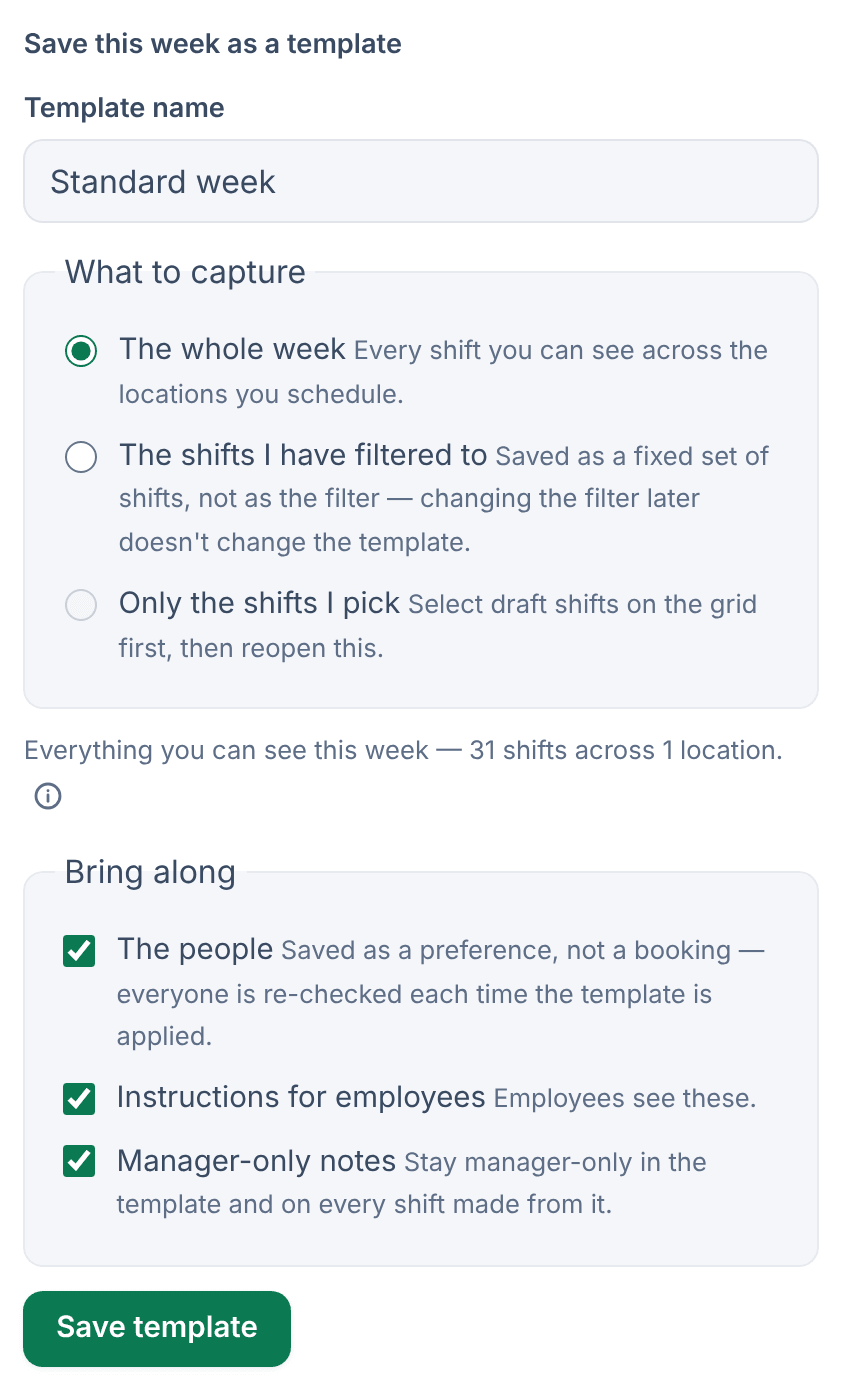
- Under Save this week as a template, enter a Template name.
- Under What to capture, choose The whole week. It saves every shift that week at the locations on screen, even if other filters hide some. To save only some draft shifts, close the panel, tick those shifts on the grid, then open Templates again and choose Only the shifts I pick.
- Under Bring along, choose what to keep with the shifts: The people, Instructions for employees and Manager-only notes.
- Select Save template.
Saved people are a preference, not a booking. Each time you apply the template, they're checked again.
A template that covers more than one location is shared with every location, and only owners and operations administrators can save it. Each location can keep up to 20 active templates, and so can the shared set.
Apply a template to a week
- Go to the week you want to fill. It has to be a draft or empty.
- Select Templates.
- On the template, select Preview and apply.
- Under Where it lands, check the location for each set of shifts. Times are read in that location's time zone, so a 6:00 AM shift stays 6:00 AM.
- Read the summary. If someone saved on the template can't work the new date, they're left off that shift, and the panel lists why. To stop the whole apply instead, untick Leave off anyone who no longer fits.
- Select the add button. It shows how many shifts it adds, such as Add 31 draft shifts.
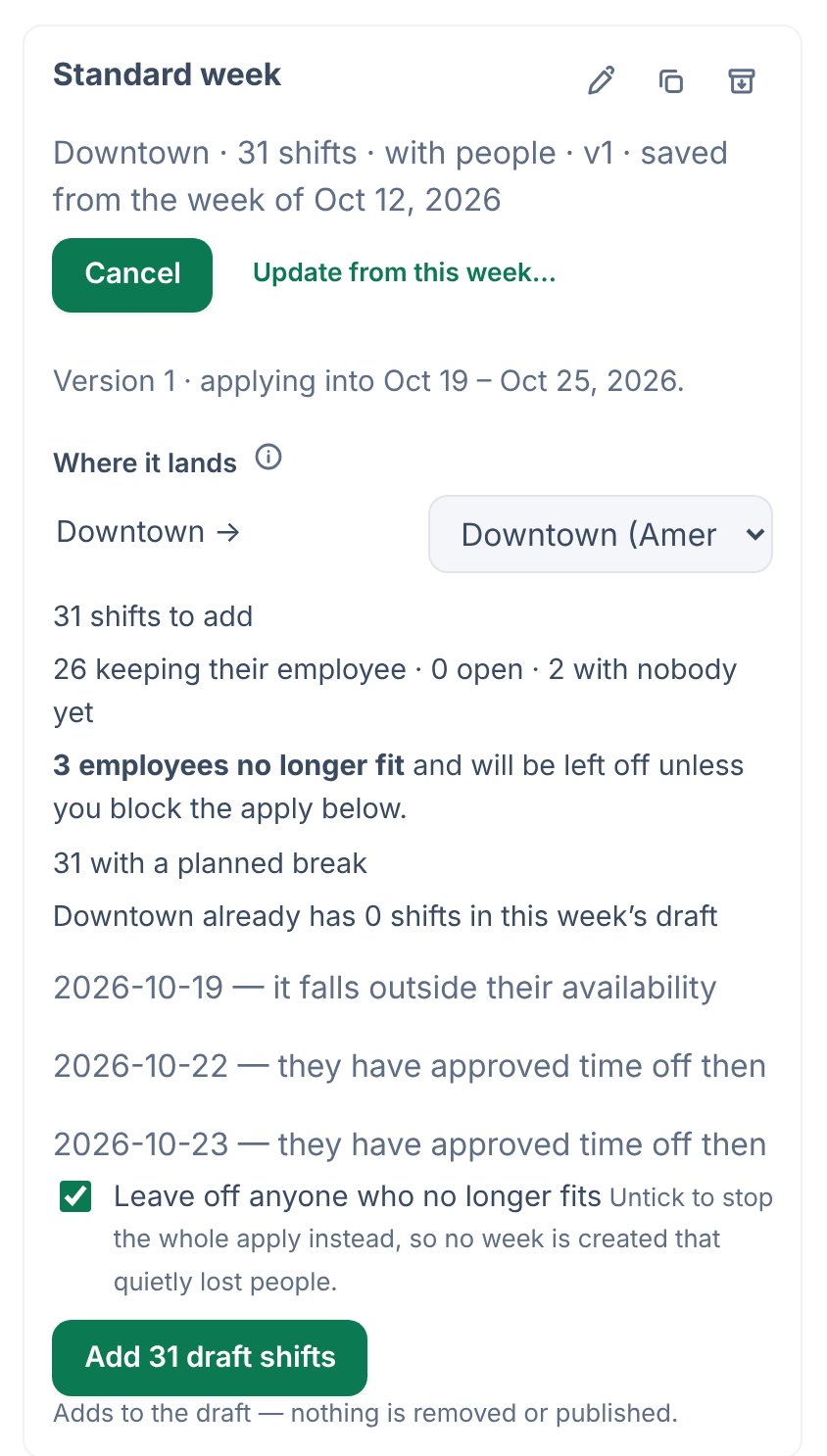
The shifts are added to the week's draft next to anything already there. Review the week, then publish it.
Manage your templates
In the Week templates panel, each template you can manage has three buttons beside its name: Rename, Duplicate and Archive. Hover over a button to see its name. To replace a template's shifts with the week on screen, select Update from this week…. Archived templates move to Archived, where Restore brings them back.
Weeks you've already built from a template never change when you edit or archive it. To start a week from the one before it instead, see Copy last week.
Was this article helpful?
More in Building the week
- Add a shift
- Move, copy, or delete shifts
- Understand conflict flags
- Copy last week
- Reuse common shifts with templates
- Set up a repeating shift
- Fill shifts with Auto-assign
- Edit several shifts at once
- Add a day note or close a day
- Change how the schedule looks
- Add a checklist to a shift
- Set a weekly hours limit
- Change the first day of the week
- All of Scheduling