Set up a repeating shift
Turn on Repeat this shift when you add a shift, and it's added to the weeks ahead as drafts. Change one date, the whole series, or end it.
A repeat turns one shift into a standing slot, such as the Saturday open. Shift Amp adds a draft copy to each week you can still edit, and you can change or end the whole series in one place. Organization owners and operations administrators can set up, change and end repeats at any location, and location managers at theirs.
Set up a repeat
- In the left menu, select Schedule, then go to the week of the first shift.
- Select Add shift and fill in the shift as usual. Its date sets the weekday it repeats on.
- Tick Repeat this shift.
- Check Name this repeat. It starts as the position's name.
- Under How often, choose Every week, Every 2 weeks, Every 3 weeks or Every 4 weeks.
- Under Until, choose the last date. A repeat can run for up to a year.
- Under Create shifts now, choose For the next 8 weeks or For the whole repeat.
- Select Create repeating shift.
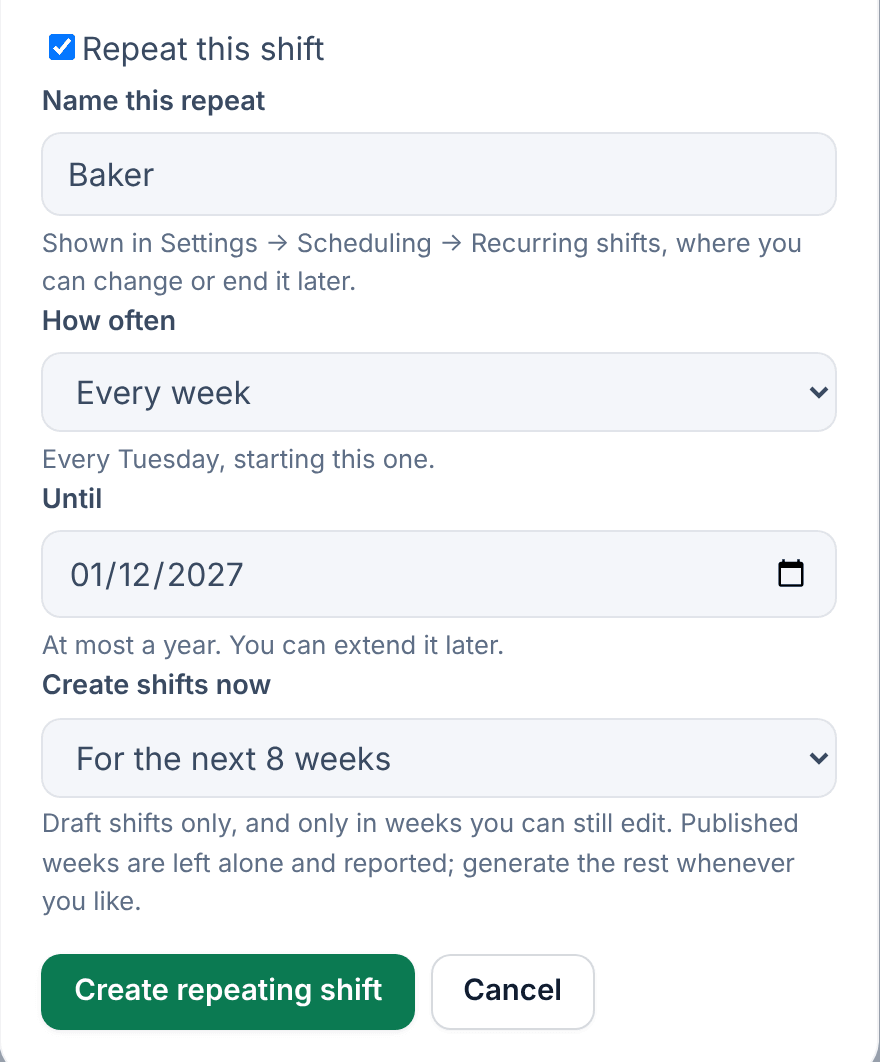
The shifts are added as drafts and marked ↻ Repeats. Weeks that are already published are skipped. If the person on the shift can't work a particular week, that week's shift is added with nobody on it. Shift Amp also saves the repeat as a shift template with the same name, so it appears in the Shift templates bar above the grid.
A repeat happens on one weekday. For a shift on Monday, Wednesday and Friday, set up three repeats.
Change one shift or the whole repeat
When you open a shift from a repeat, the panel asks "This shift repeats — what should the change apply to?" Choose one, make your change, and save:
- This shift only changes that date and nothing else. Its card then shows ↻ Repeats (edited), and later changes to the repeat leave it alone.
- All future shifts changes the repeat and every later shift you can still edit. The button reads Save to all future shifts.
Published weeks never change. To change one, create a revision. See Change a published week.
Add more weeks, change, or end a repeat
Shift Amp doesn't add more weeks on its own. Manage repeats in Settings:
- Open the account menu at the bottom of the left menu (your name), select Settings, then select Scheduling.
- Select Manage recurring shifts.
- Find the repeat, then:
- To add shifts further ahead, choose a date in Create shifts through and select Generate shifts. Leave the date blank to fill the whole repeat.
- To change it, select Change, edit the details, and select Save to all future shifts. Shifts you edited by hand keep your changes.
- To stop it, select End this repeat, then confirm. Its unpublished shifts from this week on are removed, except any you edited by hand, and published weeks keep theirs. Restore this repeat brings an ended repeat back; then select Generate shifts to add its shifts again.
You can also end a repeat from one of its shifts: open the shift and select End the whole repeat. To remove only that date, select Delete this shift only. A deleted date doesn't come back.
Was this article helpful?
More in Building the week
- Add a shift
- Move, copy, or delete shifts
- Understand conflict flags
- Copy last week
- Save and reuse a week template
- Reuse common shifts with templates
- Fill shifts with Auto-assign
- Edit several shifts at once
- Add a day note or close a day
- Change how the schedule looks
- Add a checklist to a shift
- Set a weekly hours limit
- Change the first day of the week
- All of Scheduling