Fill shifts with Auto-assign
Auto-assign proposes eligible people for a draft week's unassigned and open shifts. Review the plan, then apply it, or undo it straight after.
Auto-assign looks at a draft week's unassigned and open shifts and proposes someone for each one. Nothing changes until you apply the plan, and applying never publishes. Organization owners and operations administrators can run it at any location. Location managers and assistant managers can run it for the locations they schedule.
Run Auto-assign
- In the left menu, select Schedule, then go to a draft week that has unassigned or open shifts.
- Select Auto-assign (the lightning bolt at the top right). It's unavailable when nothing on screen needs filling.
- Under Shifts to evaluate, keep all unassigned shifts this week. If you've filtered by position or time of day, you can choose only the shifts that match.
- Select Calculate.
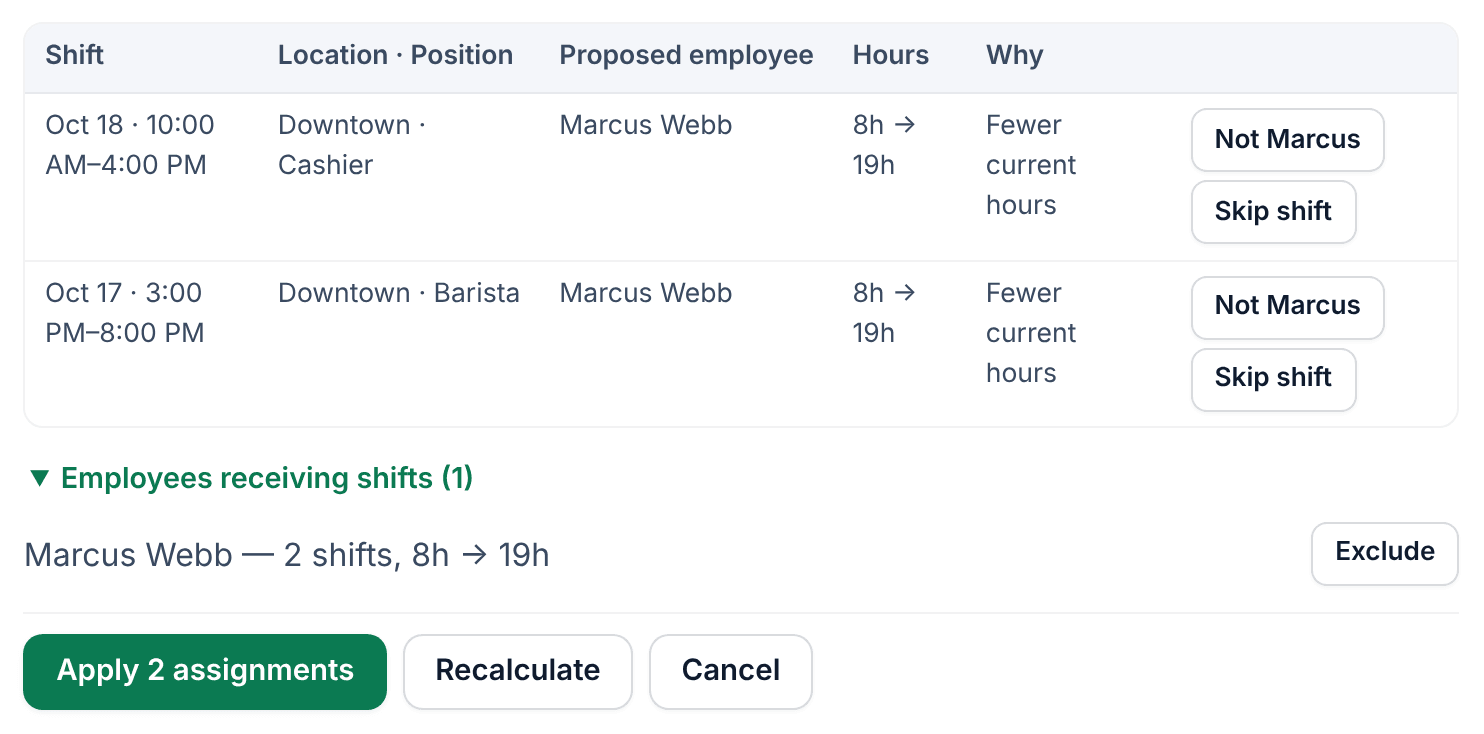
- Review the plan. Each row shows the shift, the Proposed employee, their hours this week before and after, and Why they were picked. Shifts it can't fill are listed under Could not assign, with the reasons.
- Select the apply button. It shows how many assignments it makes, such as Apply 2 assignments.
The shifts now have people on them in the draft. Employees see nothing until you publish the week.
Adjust the plan before you apply it
- To keep someone off one shift, select the button with their first name on that row, such as Not Marcus.
- To leave a shift out, select Skip shift on its row.
- To leave someone out of the whole plan, select Exclude beside their name under Employees receiving shifts.
Each choice calculates the plan again. Your choices apply to this run only; Reset clears them.
Undo Auto-assign
Right after you apply, the panel offers Undo Auto-assign. It takes off only the assignments this run made. Anything you've changed by hand since stays as it is. Then select Done.
What Auto-assign never does
- It only proposes people who are active, at the shift's location, hold its position, and are available, with no overlapping shift or approved time off.
- It never overrides a warning. To assign someone who needs an override, use the shift panel. See Understand conflict flags.
- It never uses pay rates to choose anyone.
- It never schedules anyone past your organization's weekly hours cap, or a person's own maximum, even while the weekly hours limit is Off. See Set a weekly hours limit.
- It never publishes.
Was this article helpful?
More in Building the week
- Add a shift
- Move, copy, or delete shifts
- Understand conflict flags
- Copy last week
- Save and reuse a week template
- Reuse common shifts with templates
- Set up a repeating shift
- Edit several shifts at once
- Add a day note or close a day
- Change how the schedule looks
- Add a checklist to a shift
- Set a weekly hours limit
- Change the first day of the week
- All of Scheduling