Copy last week
For managersUpdated 2 min read
Copy previous week adds the week before's shifts to this week's draft, and checks every assignment again so nobody lands on a day they can't work.
If most weeks look alike, start a new week from the one before it. Copy previous week adds last week's shifts to the week you're looking at, as drafts. Organization owners, operations administrators, location managers and assistant managers can copy weeks at the locations they schedule.
Copy the week
- In the left menu, select Schedule, then go to the week you want to fill.
- Select Copy previous week (the second button at the top right, with two overlapping squares).
- Wait while the panel checks what can be copied. Check From, To and Locations.
- Read the summary. It says how many shifts will be copied, how many keep their employee, and how many will be copied unassigned. Shifts under "Will be copied unassigned" show who was on them and why they can't keep them.
- Select the copy button. It shows how many shifts it copies, such as Copy 31 shifts.
- The panel says how many shifts it copied. Select Done.
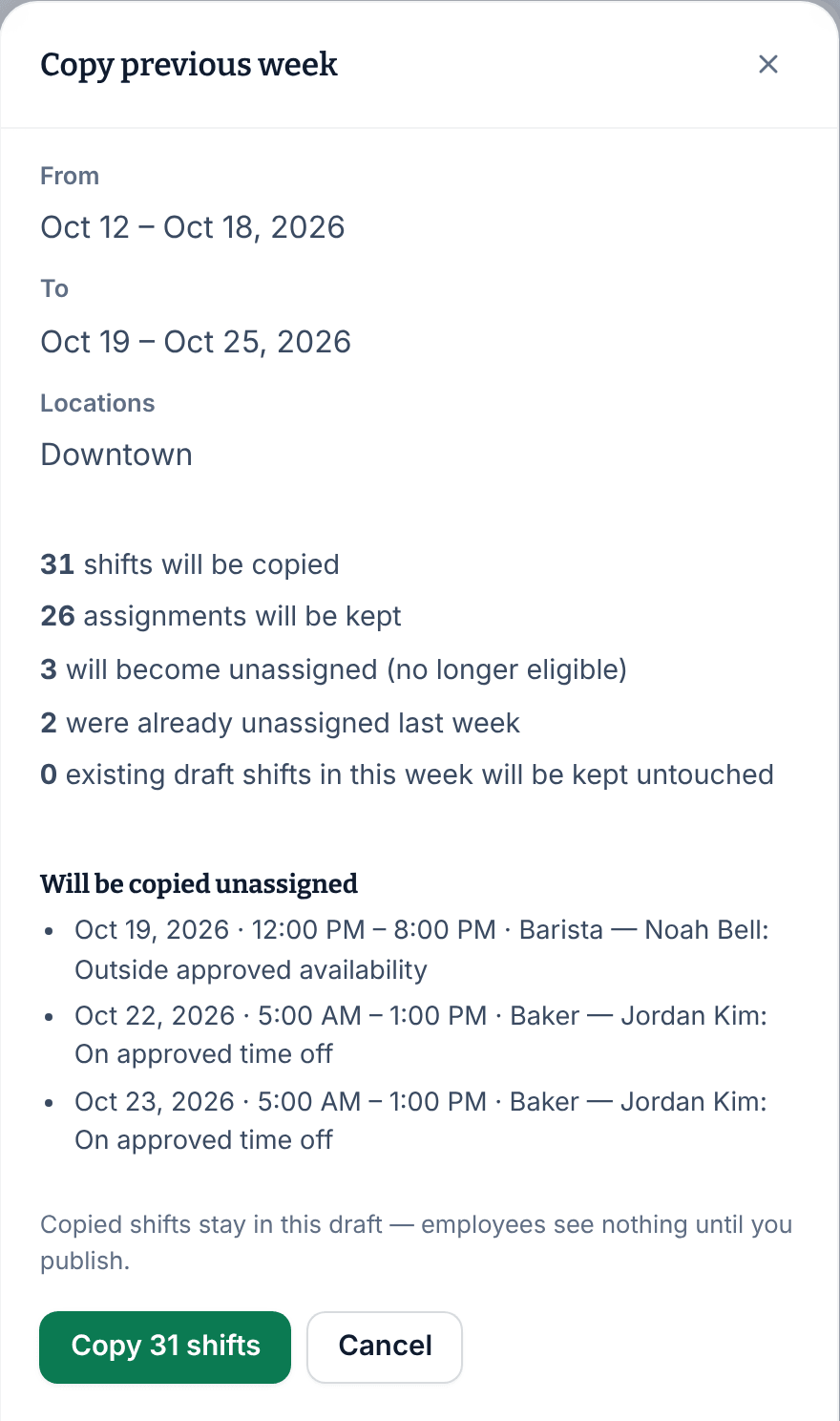
The copies are added to this week's draft. Employees see nothing until you publish.
What gets copied
- Each shift lands on the same weekday, at the same local start and end times.
- Everyone is checked again. If someone can't work the new date, for example because they're on approved time off, their shift is copied with nobody on it.
- Open shifts copy as open shifts. Claims don't copy, so the copies can be claimed again when you publish.
- Shifts for a position that's no longer active aren't copied. The panel lists them under "Can’t be copied".
- Instructions, manager-only notes, hidden end times and planned breaks come along.
- Shifts copied with nobody on them become open shifts when you first publish the week, unless you assign someone first.
When a location isn't copied
- A location whose week is already published isn't included, and the panel says so. To change a published week, create a revision. See Change a published week.
- Copy previous week isn't offered for a location while a revision of its week is in progress.
- If last week has nothing that can be copied, the panel says so and the copy button stays unavailable.
To start a week from a week further back, save that week as a template. See Save and reuse a week template.
Was this article helpful?
More in Building the week
- Add a shift
- Move, copy, or delete shifts
- Understand conflict flags
- Save and reuse a week template
- Reuse common shifts with templates
- Set up a repeating shift
- Fill shifts with Auto-assign
- Edit several shifts at once
- Add a day note or close a day
- Change how the schedule looks
- Add a checklist to a shift
- Set a weekly hours limit
- Change the first day of the week
- All of Scheduling