Edit several shifts at once
Tick draft shifts on the schedule, then change their position, location, times or staffing together, mark them open, or delete them.
Select draft shifts on the schedule to change, open or delete them in one go. Any manager who schedules the location can do this. Published shifts can't be selected: to change them, create a revision first.
Select shifts
- In the left menu, select Schedule, then go to the draft week.
- Hover over a shift card and tick the box at its top left.
- Tick the other shifts you want. To select a range, hold the Shift key while you tick another shift.
- A bar appears with the number of shifts selected. To select every draft shift on screen, select Select all shown. Use Filters first to narrow what's shown.
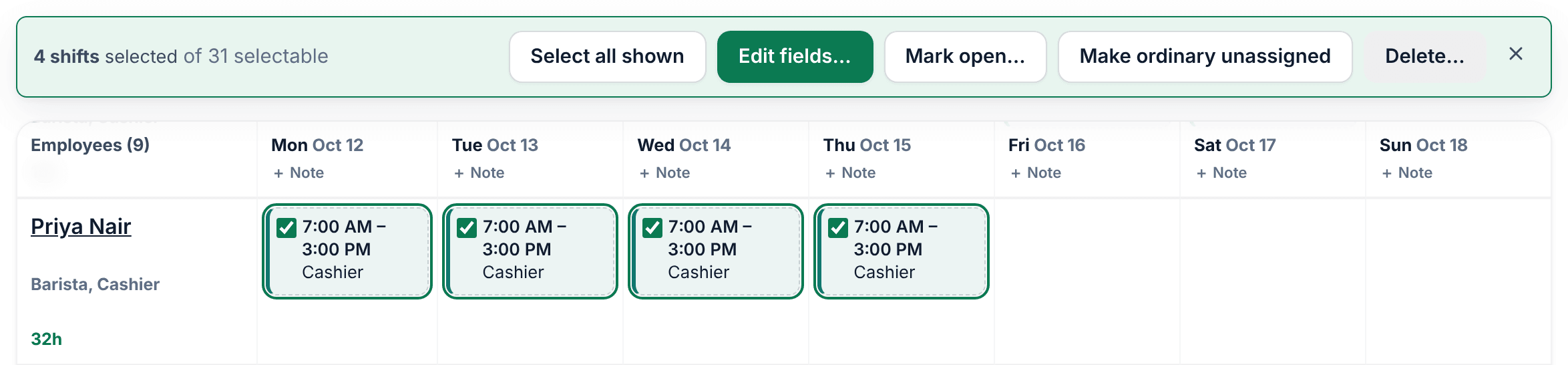
Select all shown stops at 200 shifts. To clear the selection, press Esc or select the X at the end of the bar. Leaving the page clears it too.
Change fields on the selected shifts
- In the bar, select Edit fields…. The Edit selected shifts panel opens.
- Fill in only what should change: Position, Start, End or Staffing, and Location if you schedule more than one. Anything you leave blank or at Leave unchanged stays as it is.
- Select Preview changes, and read what will change. If someone no longer fits a shift after the change, they're listed under "Will become unassigned".
- Select the change button. It shows how many shifts will change, such as Change 4 shifts.
- Select Done.
These changes never put anyone on a shift and never change the date. To move a shift to another day or person, drag it. See Move, copy, or delete shifts.
Mark shifts open or ordinary unassigned
- Mark open… makes the selected shifts open shifts that eligible employees can claim once the week is published. Anyone on them is taken off, and the confirmation says how many. Select Mark open to confirm.
- Make ordinary unassigned takes the open mark off the selected shifts. It doesn't ask first.
Delete the selected shifts
- In the bar, select Delete….
- Select the delete button to confirm. It shows how many shifts it deletes, such as Delete 4 shifts.
After any of these, a message says how many shifts changed, and how many were skipped and why.
Was this article helpful?
More in Building the week
- Add a shift
- Move, copy, or delete shifts
- Understand conflict flags
- Copy last week
- Save and reuse a week template
- Reuse common shifts with templates
- Set up a repeating shift
- Fill shifts with Auto-assign
- Add a day note or close a day
- Change how the schedule looks
- Add a checklist to a shift
- Set a weekly hours limit
- Change the first day of the week
- All of Scheduling